


Setting up legacy devices on modern systems can be a tricky task, especially when dealing with floppy image drivers over SATA connections. For developers, IT professionals, or hobbyists working with virtual machines or older operating system installations, the SATA Floppy Image Driver is an essential tool to enable compatibility and functionality using virtual floppy disk images.
TL;DR
The SATA Floppy Image Driver allows users to mount floppy disk images through SATA interfaces, enabling legacy OS installations or virtual machine configurations without actual floppy hardware. It requires downloading the correct driver version, preparing a compatible image, and carefully installing it from BIOS or within the operating system. This guide provides a step-by-step walkthrough along with common troubleshooting tips to ensure successful installation and operation.
What is the SATA Floppy Image Driver?
The SATA Floppy Image Driver is a low-level software interface that emulates a physical floppy disk drive using a data image (.img) stored on a storage device connected via SATA. With no physical floppy drives present in most modern machines, this driver offers a bridge for working with software or systems that still require floppy interactions such as BIOS flashing, DOS-based utilities, or installing early versions of Windows.
Why Use a Floppy Image Driver with SATA?
Floppy disks have become obsolete, but many baseline hardware configuration utilities still expect floppy disk access. SATA-based floppy image drivers provide:
- Legacy OS installation support (e.g., Windows XP needing SATA drivers through F6 driver load)
- BIOS-level loading of firmware updates
- Development and testing of vintage file systems or applications
These drivers leverage a mounted .img file that the BIOS or OS interprets as if it’s a physical drive, ensuring broader compatibility.
System Requirements
Before installation begins, make sure the following requirements are met:
- Compatible motherboard BIOS: Ensure your system’s firmware supports floppy boot emulation via SATA
- Operating Systems: Primarily compatible with Windows XP, Windows 7, and certain Linux distributions
- Image Format: Valid .img file formatted typically in FAT12 or FAT16
- SATA port available and no conflicting devices attached
Preparing the Floppy Image
First, users should create or acquire a floppy image (.img) that contains the necessary data, whether it’s driver files, firmware, or boot utilities.
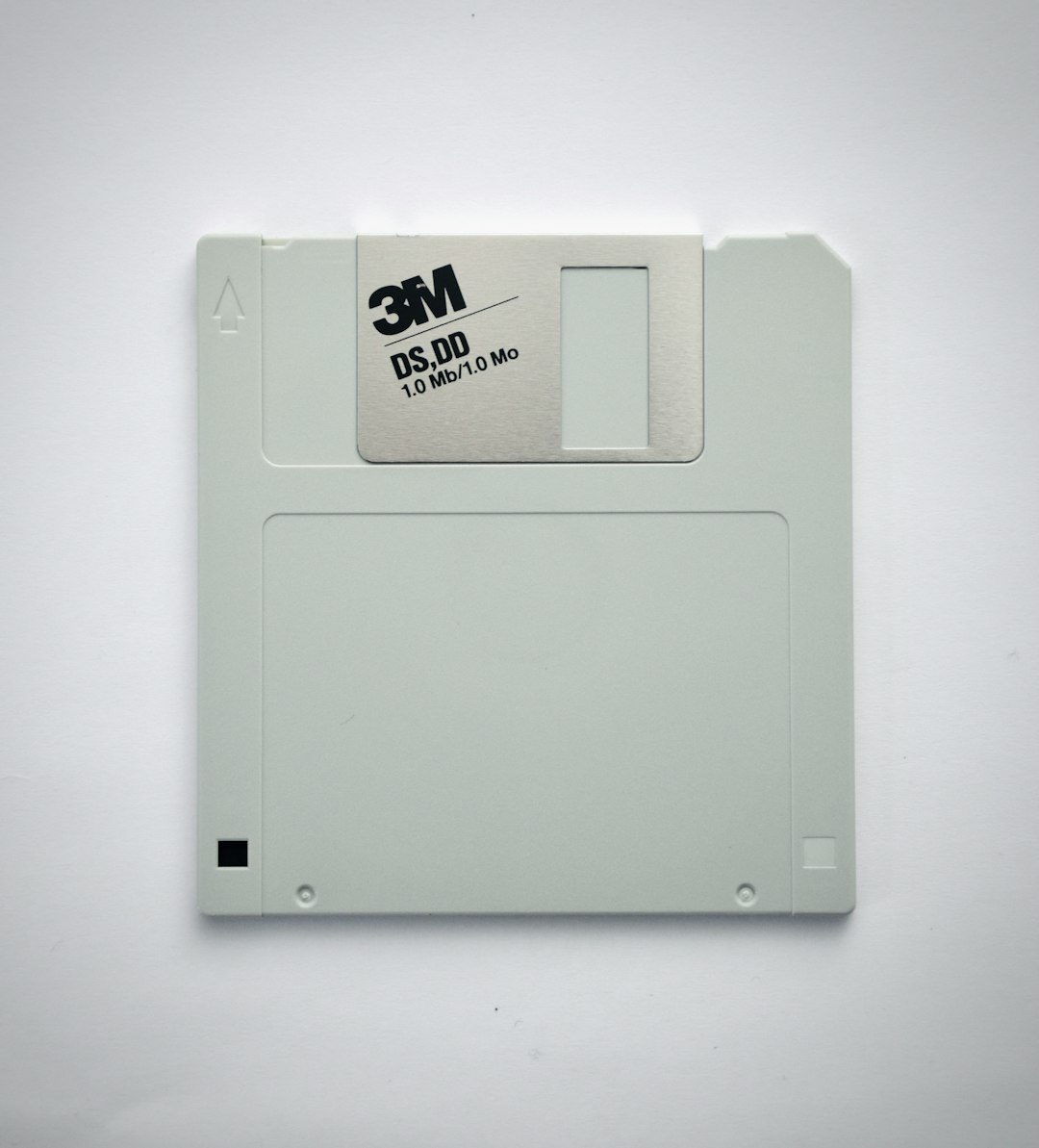
- Use software such as WinImage, Virtual Floppy Drive (VFD), or dd (Linux/macOS) to create a 1.44MB standard image.
- Ensure the image is correctly formatted and written with the desired contents.
- Label the drive volume logically (e.g., “F6DRIVER” or “BIOSBOOT”) for easier recognition during boot.
The image file must be placed in an accessible directory or storage device connected to the system.
Installing the SATA Floppy Image Driver via BIOS
This method works best when the floppy image is needed during system boot or OS installation.
- Enter the BIOS/UEFI settings by pressing DEL or F2 during startup.
- Check the “Drive Configuration” or “Advanced Storage” section for Floppy Drive Emulation or similar options.
- Select the option to mount a floppy image and browse to the location on the SATA device.
- Save and exit BIOS. Upon reboot, the system should detect the image as a floppy drive.
- If installing Windows XP, press F6 during startup to load additional drivers from the emulated floppy.
Installing in Windows-based Systems
For systems where the OS is already running, install the driver and mount the image using a utility or driver package.
- Download the compatible SATA Floppy Image Driver setup package from a verified source (consult motherboard manufacturer or forums).
- Install the driver and restart the system if prompted.
- Use the installed utility to select your floppy image (.img) and mount it as drive A: or B:.
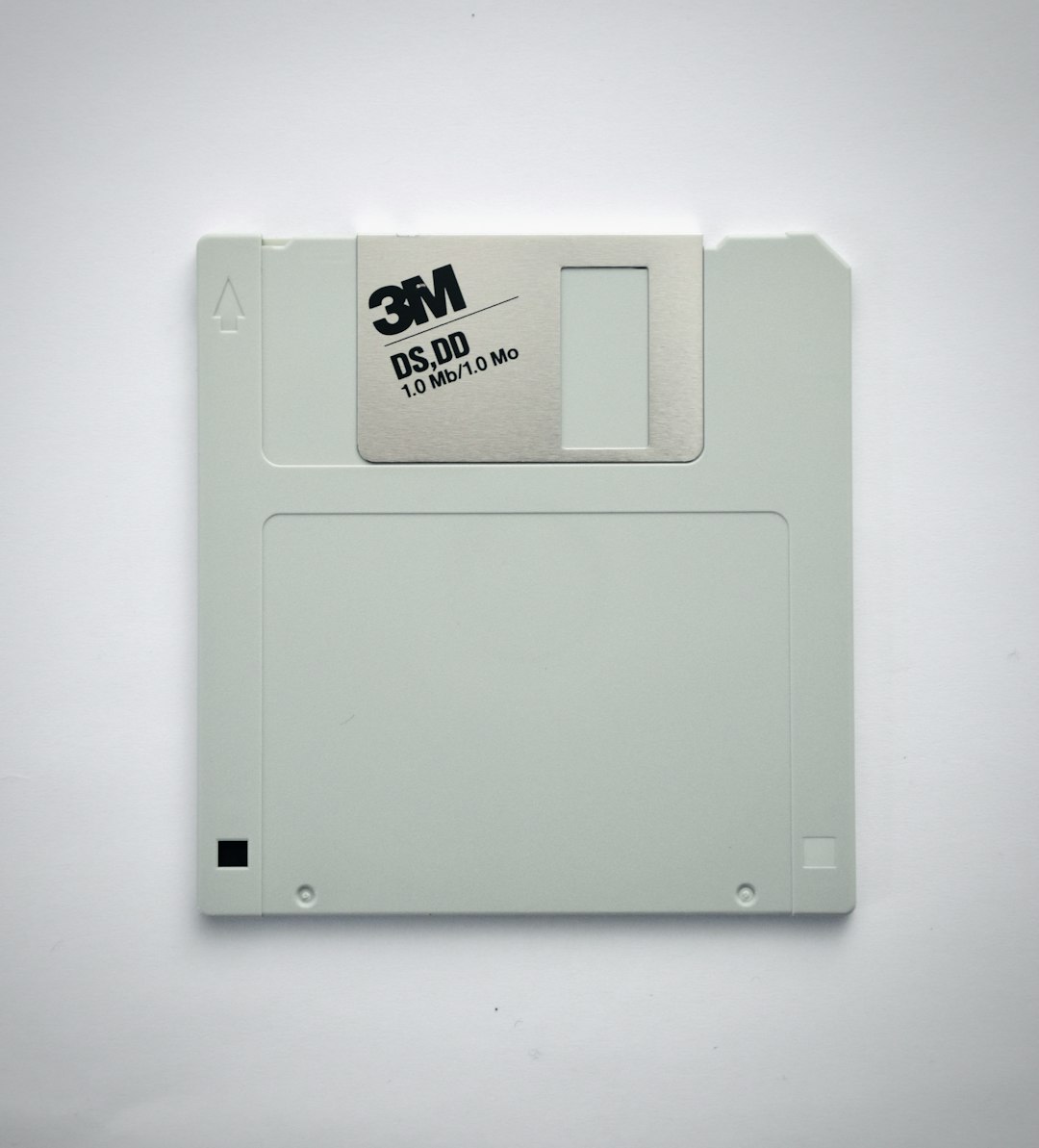
After successful mounting, the image behaves as a real floppy disk, accessible via File Explorer or command line.
Linux Configuration
On Linux systems, the floppy image can be mounted manually or via fstab with a combination of loopback and device emulation.
sudo mkdir /mnt/floppy
sudo mount -o loop /path/to/floppy.img /mnt/floppy
Advanced users may use modules like floppy.ko in conjunction with nbd or loop tools to imitate device-level behavior across reboots.
Troubleshooting Tips
- Image not detected? Ensure BIOS supports legacy mode and drive is enabled.
- Corrupt image errors? Verify the .img file’s integrity and use FAT12 format for compatibility.
- Windows fails to load drivers? Run command prompt as admin and verify driver signature enforcement is off (especially in Windows 7).
Security Considerations
Always verify driver sources and image authenticity. Malicious disk images can be used to inject legacy malware or override firmware. Use read-only mounting when possible, especially on shared or critical systems.
Conclusion
The SATA Floppy Image Driver remains a useful tool for modern users interacting with legacy systems. Whether for BIOS updates, system recovery, or old OS installations, it simplifies workflows and eliminates the need for aging floppy hardware. Correct setup and careful handling ensure reliability and performance.
FAQ
- Q: Can I use USB instead of SATA for floppy emulation?
A: Some BIOS versions support USB floppy emulation, but SATA drivers offer more stable and lower-level access for boot operations. - Q: What image formats are supported?
A: Standard 1.44MB .img files in FAT12 are most commonly supported. Avoid using compressed or custom formatted images. - Q: Are Windows 10 or 11 supported?
A: Not natively. These systems do not support floppy drivers via traditional mounting. You may use virtual machines or specialized tools for post-legacy OS usage. - Q: How do I know the image is mounted correctly in BIOS?
A: After boot, enter BIOS or use boot menus. The floppy drive should appear as A: or B:. Some BIOS show the image name or label directly. - Q: Can I write changes back to the floppy image?
A: Yes, if the image is mounted in read-write mode. However, enabling write access can lead to corruption if improperly ejected or if the system crashes.