

Mac computers are known for their reliability, but even the most stable systems can occasionally experience glitches. Issues like incorrect battery reporting, unresponsive ports, strange display behavior, or startup problems can sometimes be traced back to deeper system settings. In many of these cases, resetting the PRAM (or NVRAM) and SMC can help restore normal functionality and resolve persistent bugs without requiring software reinstallation or professional repair.
TLDR: Resetting PRAM (also called NVRAM) and SMC can fix many common Mac issues like display glitches, battery problems, startup errors, or unresponsive hardware. PRAM/NVRAM stores system settings such as volume and screen resolution, while SMC controls hardware-level functions like power management and thermal control. The reset process is simple but differs slightly between Intel and Apple silicon Macs. Following the correct steps carefully can restore your Mac’s stability in minutes.
Understanding PRAM, NVRAM, and SMC
Before performing a reset, it helps to understand what these components actually do.
What Is PRAM/NVRAM?
PRAM (Parameter Random Access Memory), now commonly referred to as NVRAM (Non-Volatile Random Access Memory), stores specific system settings even when the Mac is turned off. These include:
- Speaker volume
- Screen resolution
- Startup disk selection
- Time zone information
- Kernel panic information
If these settings become corrupted, the Mac may behave unpredictably.
What Is the SMC?
The System Management Controller (SMC) is responsible for managing lower-level hardware functions, particularly on Intel-based Macs. It handles:
- Battery management
- Thermal regulation and fan control
- Sleep and wake functions
- LED indicators
- Power button responsiveness
Apple silicon Macs do not have a traditional SMC. Instead, many of its functions are integrated into the system architecture and can be resolved with a simple restart.

When Should You Reset PRAM or SMC?
Not every issue requires these resets, but certain symptoms strongly suggest it may help.
Common Signs You Should Reset PRAM/NVRAM
- Mac keeps forgetting default startup disk
- Unexpected screen resolution changes
- Speaker volume behaves abnormally
- Time zone keeps resetting
- Frequent kernel panic errors
Common Signs You Should Reset SMC
- Battery not charging properly
- Incorrect battery percentage
- Fans running constantly or loudly
- Mac won’t sleep or wake properly
- Power button doesn’t respond consistently
How to Reset PRAM/NVRAM on Mac
The reset process differs slightly depending on whether the Mac is Intel-based or powered by Apple silicon.
Resetting PRAM/NVRAM on Intel-Based Macs
- Shut down the Mac completely.
- Turn it back on and immediately press and hold:
Option + Command + P + R
- Hold the keys for about 20 seconds.
- The Mac may restart during this process.
- Release the keys once the Apple logo appears again (or after the second startup sound on older Macs).
Once restarted, the system settings stored in PRAM/NVRAM will be reset to default values.
Resetting PRAM/NVRAM on Apple Silicon Macs
Apple silicon Macs automatically reset NVRAM when necessary. There is no manual key combination. If you suspect an issue:
- Shut down the Mac.
- Wait 30 seconds.
- Turn it back on.
In most cases, this restart is sufficient to resolve configuration-related issues.
How to Reset SMC on Intel Macs
The SMC reset process depends on the Mac model.
For MacBooks with T2 Security Chip (2018–2020 Intel Models)
- Shut down the Mac.
- Press and hold these keys for 7 seconds:
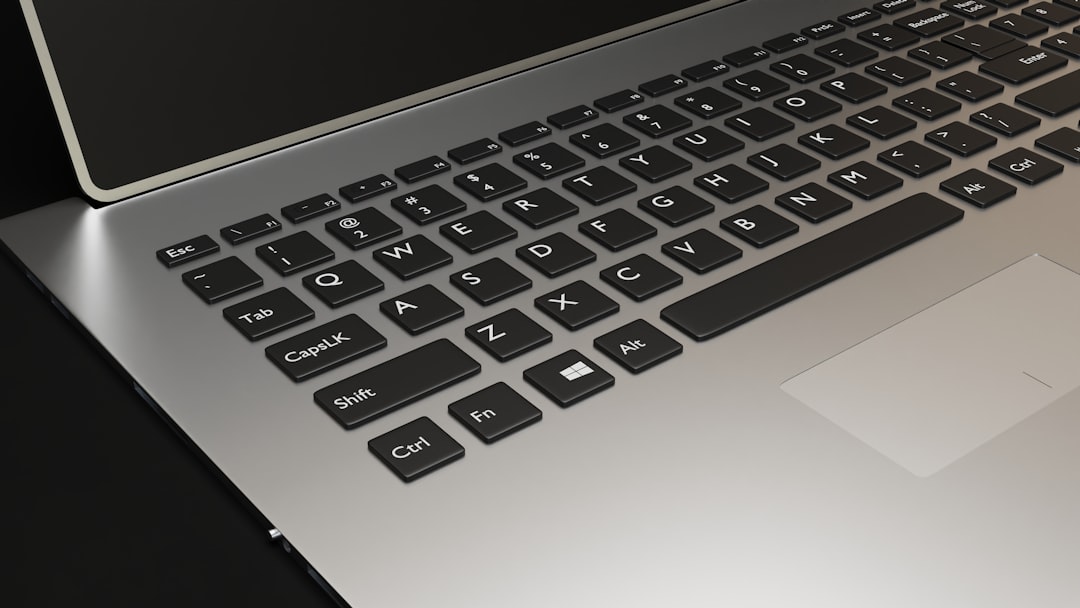
Control (left) + Option (left) + Shift (right)
- While holding those keys, press and hold the Power button as well.
- Continue holding all keys for 7 more seconds.
- Release all keys and wait a few seconds.
- Turn the Mac back on.
For MacBooks Without T2 Chip (Older Intel Models)
- Shut down the Mac.
- Connect the power adapter.
- Press and hold:
Shift (left) + Control (left) + Option (left) + Power button
- Hold for 10 seconds.
- Release all keys.
- Turn the Mac on normally.
For Desktop Macs (iMac, Mac mini, Mac Pro – Intel)
- Shut down the Mac.
- Unplug the power cord.
- Wait 15 seconds.
- Plug the power cord back in.
- Wait 5 seconds.
- Turn on the Mac.
SMC Reset on Apple Silicon Macs
Apple silicon Macs do not have a separate SMC reset process. Instead:
- Shut down the Mac completely.
- Wait 30 seconds.
- Turn it back on.
If issues persist, performing a full shutdown rather than a restart may help clear hardware-level glitches.
Comparison Chart: PRAM/NVRAM vs SMC Reset
| Feature | PRAM/NVRAM Reset | SMC Reset |
|---|---|---|
| Purpose | Resets stored system settings | Resets hardware power management |
| Fixes display issues | Yes | Sometimes |
| Fixes battery problems | No | Yes |
| Fixes startup disk errors | Yes | No |
| Required on Apple silicon | Automatic | Restart only |
| Difficulty Level | Easy | Moderate (Intel only) |
What Happens After the Reset?
After resetting PRAM/NVRAM, users may notice:
- Time zone needs to be reset
- Screen resolution returns to default
- Startup disk may need re-selection
- Volume settings revert
After an SMC reset, improvements are usually visible in:
- Battery charging accuracy
- Fan noise normalization
- Consistent sleep and wake behavior
- Restored indicator light functions
Important Precautions
While these resets are safe, users should consider a few precautions:
- Save all work before performing a reset.
- Ensure the Mac has sufficient battery or is plugged in.
- Avoid interrupting the reset process midway.
- Know your Mac model to follow the correct method.
Resetting PRAM and SMC does not delete personal files, applications, or documents. It only impacts stored configuration and hardware management settings.
Troubleshooting If Problems Persist
If resetting PRAM and SMC does not solve the issue, additional steps may include:
- Booting into Safe Mode
- Running Disk Utility First Aid
- Reinstalling macOS
- Running Apple Diagnostics
- Contacting Apple Support
Persistent hardware problems may indicate battery failure, logic board issues, or deeper system faults that require professional service.
Frequently Asked Questions (FAQ)
1. Does resetting PRAM or SMC delete files?
No. These resets do not remove personal data, applications, or documents. They only reset system and hardware-level settings.
2. How often should PRAM or SMC be reset?
There is no regular schedule. A reset should only be performed when troubleshooting specific problems.
3. Can resetting PRAM fix WiFi problems?
It may help if the issue is related to corrupted network settings, but most WiFi problems require network troubleshooting instead.
4. Why doesn’t my Apple silicon Mac have an SMC reset?
Apple silicon integrates system management functions into its architecture. A full shutdown typically performs the necessary reset automatically.
5. What is the difference between restart and shutdown for troubleshooting?
A restart refreshes the operating system, while a shutdown fully powers off hardware components. For SMC-related issues, a complete shutdown is often more effective.
6. Is it safe to reset PRAM multiple times?
Yes, it is safe. However, repeated resets should not be necessary unless underlying issues persist.
7. My Mac still won’t turn on after SMC reset. What should I do?
Check the power adapter and cable, try a different outlet, and consider professional repair if the issue continues.
By understanding how and when to reset PRAM and SMC, users can quickly resolve many common Mac issues without technical expertise. These simple troubleshooting steps remain among the most effective first responses to stubborn hardware and system glitches.