

If you’ve recently attempted to dive into the chaotic thrill of Killing Floor 3 only to be met by a frustrating “Load Error 4,” you’re not alone. This error has become a common issue affecting players across various platforms. It can stem from several sources ranging from corrupted game files to connectivity and permissions issues. But don’t worry — we’ve put together a comprehensive, trustworthy guide to not only help you understand the root cause but also walk you through step-by-step solutions so you can get back to battling Zeds as soon as possible.
TL;DR
“Load Error 4” in Killing Floor 3 typically points to either missing or corrupted game files, software conflicts, or permissions and cache issues. To resolve it, verify your game files, check your system for conflicts, and ensure you have the correct user permissions. In cases where the error persists, clearing configuration files or reinstalling the game may be necessary. Follow the steps outlined below to solve the issue effectively and safely.
What is Load Error 4 in Killing Floor 3?
Load Error 4 occurs when the game client fails to load essential files or components necessary to launch properly. This can happen due to incomplete installation, corrupted cache, file permission issues, or restrictions imposed by antivirus software or firewalls. The error message often appears during the game’s startup sequence as it attempts to load critical runtime libraries or configuration files.
Common Symptoms
- Error message appears immediately after launching the game.
- Game crashes to desktop without fully loading.
- Specific missing DLL errors in error logs.
- Steam or Epic launcher fails to initialize the game properly.
Step-by-Step Solutions to Fix Load Error 4
1. Verify Integrity of Game Files
The first and most common reason for “Load Error 4” is corrupted or missing game files. Whether you’re playing through Steam or Epic Games Launcher, most issues can be resolved by using the built-in file verification feature.
For Steam Users:
- Open Steam and navigate to the Library.
- Right-click on Killing Floor 3 and select Properties.
- Go to the Local Files tab.
- Click on Verify Integrity of Game Files.
For Epic Games Users:
- Open the Epic Games Launcher.
- Find Killing Floor 3 in your library.
- Click the three dots under the game icon, then select Manage.
- Click Verify.
Allow the launcher some time to scan and repair any corrupted files. Once complete, try launching the game again.
2. Run the Game as Administrator
Sometimes Windows may restrict access to certain game files, particularly if the game is installed in a protected directory like Program Files. Running the game as an administrator can help bypass these restrictions.
To do this:
- Navigate to the folder where the game is installed.
- Right-click on KF3.exe or the game launcher.
- Select Properties > Compatibility tab.
- Check the box labeled Run this program as an administrator.
- Click Apply, then OK.
Try launching the game again to see if the error has been eliminated.
3. Check for Software Conflicts
Third-party applications — particularly antivirus programs, overlay software like Discord or NVIDIA GeForce Experience, and performance boosters — can interfere with the game’s startup process.
Recommended actions:
- /Disable/ or temporarily exit any unnecessary programs before launching the game.
- Add Killing Floor 3 as an exception or “allowed application” in your antivirus software and Windows Firewall settings.
- If you use a VPN, try disabling it before launching the game. Some VPNs can prevent validation with game servers.
4. Delete Configuration Files
Configuration files can sometimes become corrupted or contain conflicting settings. Removing them will cause the game to generate fresh config files on the next launch.
Warning: This will reset your in-game settings such as graphics and keybindings.
To delete config files:
- Navigate to: Documents\My Games\KillingFloor3\Config.
- Back up the folder just in case.
- Delete all files inside the Config directory.
Then restart the game and see if the problem persists.
Image not found in postmeta5. Reinstall Visual C++ Redistributables
Load errors like this can sometimes be traced back to missing or faulty Microsoft Visual C++ runtime libraries. Reinstalling these packages can fix the problem.
Steps:
- Go to the Microsoft official download page.
- Download both the x64 and x86 versions of the latest C++ Redistributables.
- Install them, and if prompted, allow them to repair existing installations.
- Restart your PC after installation.
After the restart, attempt to launch the game again.
6. Check Disk Space and System Requirements
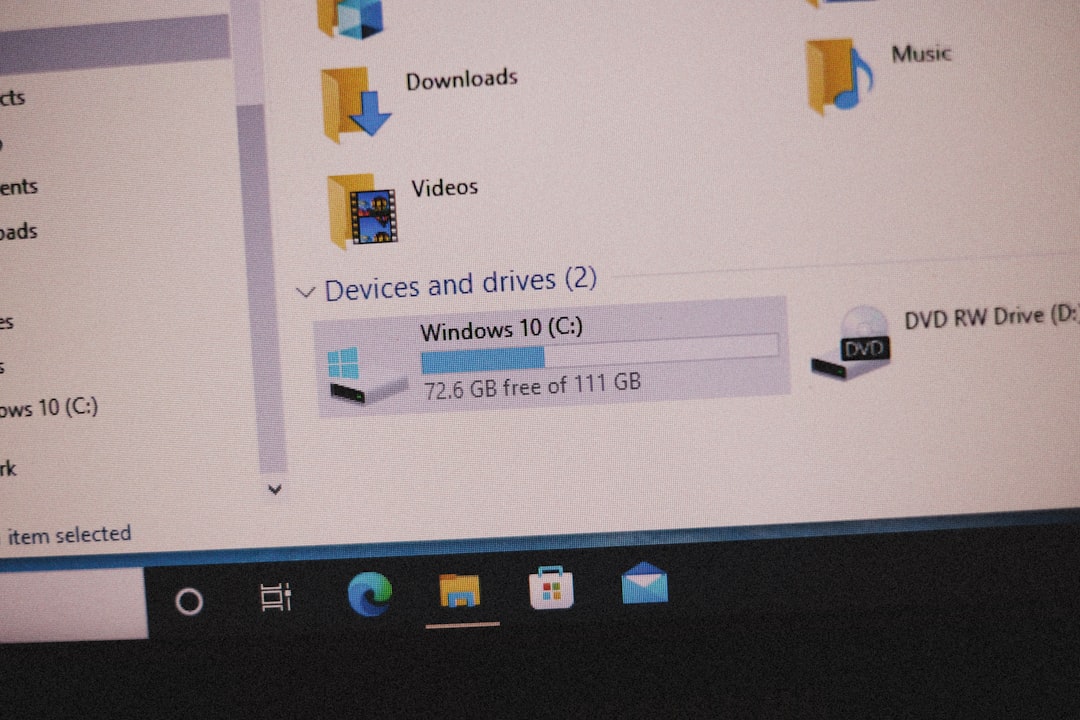
Although often overlooked, insufficient disk space or outdated hardware can lead to unexpected errors. Make sure that you have at least 20 GB of free space available and meet the game’s minimum system requirements.
To check disk space:
- Open This PC or File Explorer.
- Look at the storage bar under your system drive (usually C:).
Free up space if less than 15% is available. Also, ensure your GPU drivers are fully updated using either NVIDIA or AMD platforms.
7. Perform a Clean Reinstallation
If none of the above steps help, consider uninstalling and reinstalling the entire game. A clean installation ensures that any corrupted residual files or settings are completely removed.
Steps:
- Backup any saved progress or custom files.
- Uninstall the game through Steam, Epic, or Windows Settings.
- Manually delete remaining game folders in:
C:\Program Files\Killing Floor 3 and Documents\My Games\KillingFloor3 - Reboot your system and perform a fresh download and installation.
When to Contact Support
If you’ve followed all these steps and continue to receive Load Error 4, it may point to a deeper system issue or a bug in the game itself. In this case, submit a support request to Tripwire Interactive along with:
- Your DxDiag.txt system report.
- A screenshot of the error message.
- Steps you’ve already tried.
You can contact support through their official support page.
Final Thoughts
“Load Error 4” in Killing Floor 3 can be a frustrating barrier between you and the battlefield, but it is generally solvable through practical troubleshooting steps. Whether it’s by verifying game files, adjusting permissions, or reinstalling core software components, the key is to be systematic and patient. Always ensure system software is up-to-date and avoid using unsupported mods or third-party enhancements that may interfere with game loading. By following the tips above, you can significantly improve the chances of resolving the issue—and getting back into the