

Few things are more frustrating than launching Hogwarts Legacy only to be greeted with an error message saying “EMP.dll Not Found”. In 2026, this issue continues to affect PC players due to corrupted files, antivirus interference, or incomplete installations. Fortunately, the error is usually easy to fix with the right steps and a bit of patience.
TL;DR: The Hogwarts Legacy EMP.dll Not Found error is typically caused by missing or quarantined game files, antivirus software, or corrupted installations. Players can fix it by verifying game files, restoring quarantined files, reinstalling required redistributables, or performing a clean reinstall. Avoid downloading DLL files from random websites, as they may contain malware. Following the structured fixes below will resolve the issue in most cases.
What Is the EMP.dll Not Found Error?
The EMP.dll Not Found error appears when Windows cannot locate the required EMP.dll file needed to launch Hogwarts Legacy. DLL (Dynamic Link Library) files contain code and data used by multiple programs. When such a file goes missing or becomes corrupted, the system cannot properly execute the game.
Common error messages include:
- “EMP.dll was not found.”
- “The code execution cannot proceed because EMP.dll was not found.”
- “EMP.dll is missing from your computer.”
This problem usually arises after:
- Antivirus software quarantines the file
- The game installation becomes corrupted
- A Windows update disrupts system files
- A user manually deletes game files
Important: Avoid Downloading Random DLL Files
Before jumping into solutions, it is crucial to understand what not to do. Many websites claim to offer quick downloads of missing DLL files. Downloading these files from unofficial sources can:
- Infect the computer with malware
- Cause further system instability
- Create compatibility issues
Instead of downloading a standalone EMP.dll file, players should restore the file properly through the game launcher or reinstall official components.
Step-by-Step Fixes for EMP.dll Not Found (2026)
1. Verify Game Files (Steam / Epic Games)
The first and most effective method is verifying the integrity of the game files.
For Steam:
- Open Steam.
- Go to Library.
- Right-click Hogwarts Legacy.
- Select Properties.
- Click Installed Files.
- Select Verify integrity of game files.
For Epic Games Launcher:
- Open Epic Games Launcher.
- Go to Library.
- Click the three dots next to Hogwarts Legacy.
- Select Verify.
This process scans for missing or corrupted files and replaces them automatically.
2. Check Antivirus Quarantine
In 2026, antivirus programs remain one of the most common causes of missing DLL errors. Security software may falsely flag EMP.dll as suspicious and quarantine it.
To fix this:
- Open the antivirus dashboard.
- Navigate to Quarantine or Threat History.
- Look for EMP.dll.
- Restore the file.
- Add the Hogwarts Legacy game folder to exclusions.
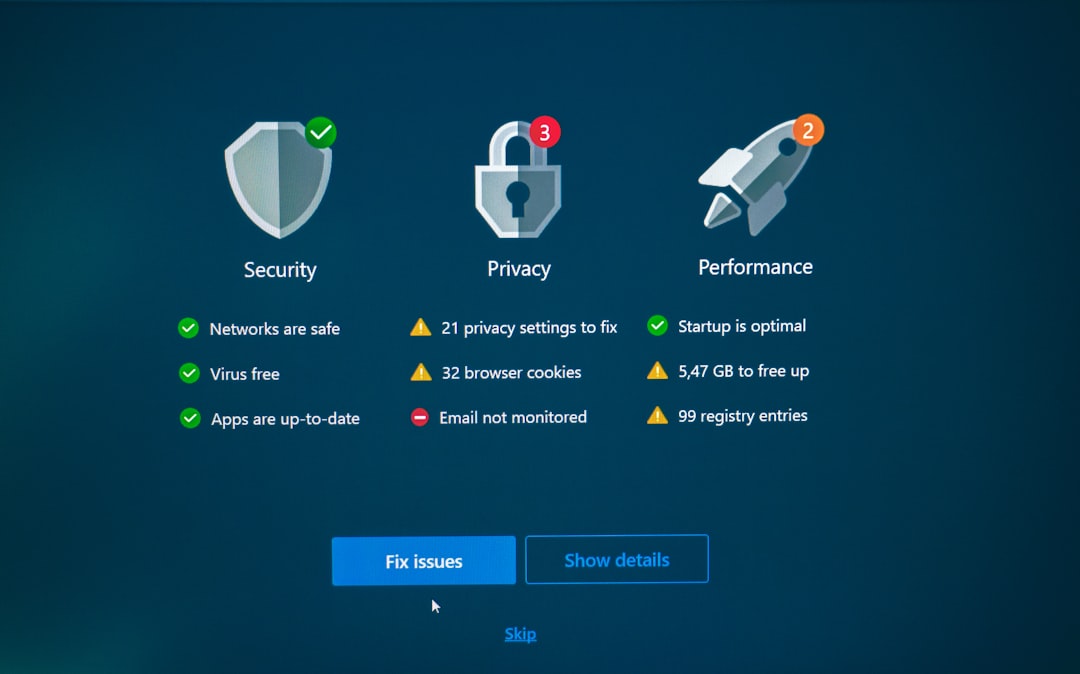
After restoring the file, restart the computer before launching the game again.
3. Reinstall Microsoft Visual C++ Redistributables
Many games rely on Microsoft Visual C++ components. If these are damaged, DLL errors may occur.
Steps:
- Press Windows + R.
- Type appwiz.cpl.
- Uninstall all Microsoft Visual C++ Redistributables.
- Download the latest versions from Microsoft’s official website.
- Install both x64 and x86 versions.
- Restart the PC.
4. Run System File Checker (SFC)
Corrupted Windows system files can also cause the EMP.dll error.
How to run SFC scan:
- Open Command Prompt as Administrator.
- Type: sfc /scannow
- Press Enter.
- Wait for the scan to finish.
The tool will automatically repair system-level corruption.
5. Perform a Clean Reinstall of Hogwarts Legacy
If none of the above methods work, a clean reinstall may be necessary.
Steps:
- Uninstall Hogwarts Legacy.
- Delete any remaining game folder in the installation directory.
- Restart the PC.
- Reinstall the game.
A fresh installation ensures all required DLL files are properly restored.
Comparison of Fix Methods
| Method | Difficulty | Effectiveness | Time Required |
|---|---|---|---|
| Verify Game Files | Easy | High | 5–15 minutes |
| Restore from Antivirus | Easy | High | 5 minutes |
| Reinstall Visual C++ | Medium | Medium–High | 15–20 minutes |
| SFC Scan | Medium | Medium | 20–30 minutes |
| Clean Reinstall Game | Medium | Very High | 30–90 minutes |
Advanced Fixes (If the Error Persists)
6. Update Graphics Drivers
Outdated GPU drivers may conflict with game DLL files. Players should download the latest drivers from NVIDIA, AMD, or Intel’s official websites.
7. Disable Overlay Programs
Discord overlay, GeForce Experience overlay, and other third-party overlays sometimes interfere with game libraries. Temporarily disabling them can resolve loading errors.
8. Check for Windows Updates
Keeping Windows fully updated ensures compatibility with the latest game builds and prevents missing dependency issues.
Why This Error Still Happens in 2026
Even in 2026, PC gaming remains highly customizable and therefore susceptible to file conflicts. Factors include:
- Frequent Windows feature updates
- Advanced antivirus heuristics
- Modded game installations
- Incomplete update patches
Because Hogwarts Legacy is a large AAA title, it uses multiple runtime dependencies, making occasional DLL issues unavoidable when something interrupts the installation process.
How to Prevent EMP.dll Errors in the Future
Preventative measures can help avoid this issue altogether:
- Always exit the launcher properly before shutting down the PC.
- Avoid force-closing the game during updates.
- Keep antivirus exclusions properly configured.
- Do not manually modify the game directory unless necessary.
- Regularly update Windows and GPU drivers.
These simple actions significantly reduce the chance of encountering DLL-related errors again.
Frequently Asked Questions (FAQ)
1. Is it safe to download EMP.dll from a DLL website?
No. Downloading DLL files from unofficial sources is risky and may install malware. Always restore the file using official methods like verifying game files.
2. Does this error mean my PC is infected with a virus?
Not necessarily. In most cases, the antivirus mistakenly removes the file. However, it is still wise to run a full system scan if unsure.
3. Will reinstalling Windows fix the issue?
Reinstalling Windows is rarely necessary. The error is usually resolved by verifying game files or reinstalling the game.
4. Why does my antivirus flag EMP.dll?
Some DLL files associated with executable loading patterns may appear suspicious to heuristic-based antivirus systems, leading to false positives.
5. Does the error only affect cracked versions?
While unofficial versions may experience it more often, legitimate copies can also encounter the error due to corrupted files or antivirus interference.
6. How long does it take to fix EMP.dll Not Found?
Most users can resolve it within 10–30 minutes by verifying files or restoring quarantined content.
7. Can outdated drivers cause this error?
Indirectly, yes. Outdated drivers may conflict with the game and trigger file loading errors.
Final Thoughts
The Hogwarts Legacy EMP.dll Not Found error can be alarming, but it is rarely serious. In 2026, most cases stem from antivirus quarantine or corrupted installation files rather than permanent system damage. By following the structured solutions outlined above—starting with verifying game files—players can quickly return to exploring the wizarding world.
With a careful approach and proper file handling, this frustrating launch error becomes a temporary setback rather than a game-breaking disaster.