

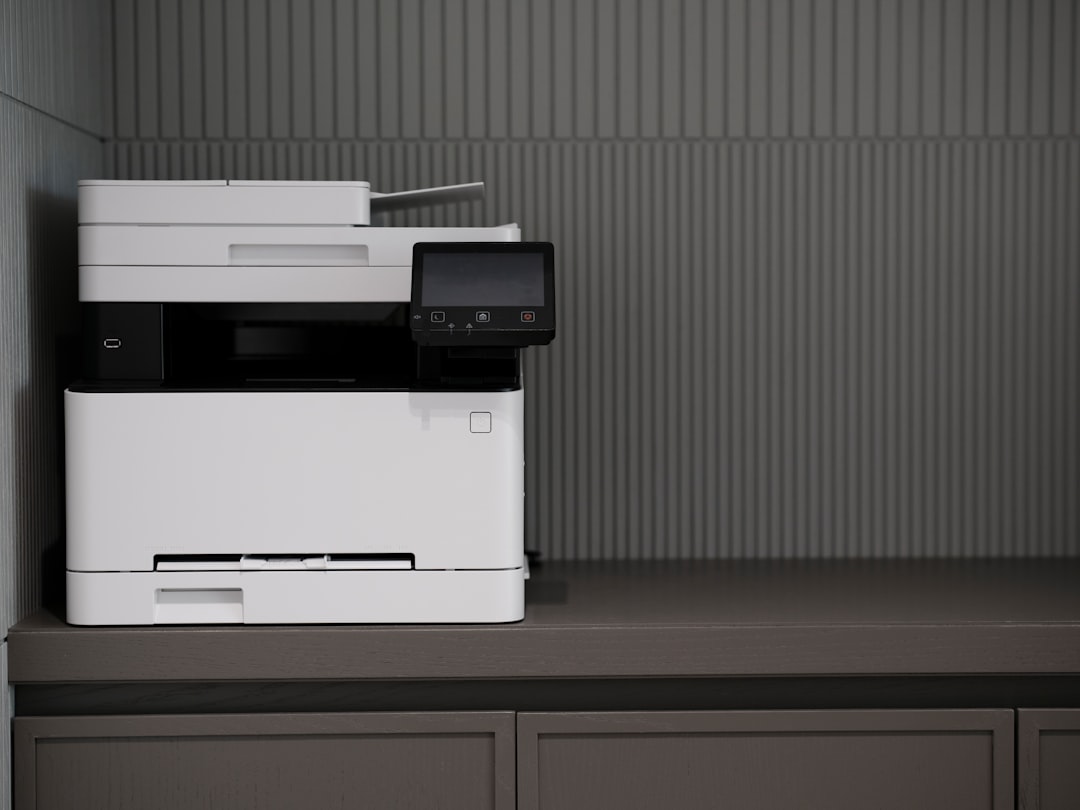
Direct to Film (DTF) printers have revolutionized the process of transferring high-quality graphics onto fabrics and other materials. However, like any sophisticated printing equipment, DTF printers can run into operational issues. One common and frustrating problem is the “Abnormal Ink Stack” error. Understanding what causes this error and how to resolve it can save users from production delays and costly repairs.
TLDR:
The Abnormal Ink Stack Error in DTF printers often stems from clogged print heads, faulty capping stations, or poor ink flow. Users can usually fix it by checking and cleaning the print head assembly, ensuring proper alignment of the capping station, and maintaining consistent ink levels. Periodic maintenance and use of high-quality consumables can prevent recurrence. Always follow the manufacturer’s guidelines and run routine diagnostics for optimal printer health.
What is the “Abnormal Ink Stack” Error?
This error typically indicates a malfunction within the ink delivery or head cleaning system. The “ink stack” refers to the assembly of the print head, capping station, wiper blade, and ink lines that manage the ink flow. When one or more of these components fail to work correctly, the printer halts its normal operation to prevent damage or poor-quality printing.
Common symptoms that accompany this error include:
- Inconsistent or missing ink on prints
- Frequent head cleaning cycles without improvement
- Ink puddles or dry print heads
- Unusual noises during head movement or cleaning
Common Causes of Abnormal Ink Stack Error
Understanding the underlying causes of this issue is crucial in determining the appropriate fix. Here are several of the most frequent causes:
- Clogged Print Head Nozzles: Dried ink or debris blocking the nozzles disrupts the normal ink flow.
- Faulty or Misaligned Capping Station: If the print head doesn’t seal correctly against the capping station during parking, it can lead to evaporation and clogging.
- Damaged or Worn Wiper Blade: A defective wiper blade might not clean the print head properly, causing ink buildup.
- Inconsistent Ink Supply: Air bubbles, low ink levels, or clogged ink lines can interfere with proper ink flow.
- Firmware or Software Issues: Occasionally, miscommunication between components due to outdated or corrupted firmware can also trigger the error.
Step-by-Step Guide to Fix the Error
Here’s a detailed breakdown of steps DTF printer users can take to identify and resolve the “Abnormal Ink Stack” issue.
1. Power Down and Inspect the Printer
Always start with turning off the printer and unplugging it. This ensures safety and prevents further head damage during manual inspection.
2. Clean the Print Head and Surrounding Components
Use lint-free cloths, cleaning solution compatible with your printer model, and gloves. Carefully wipe excess ink from the print head, and clean the capping station and wiper blade.
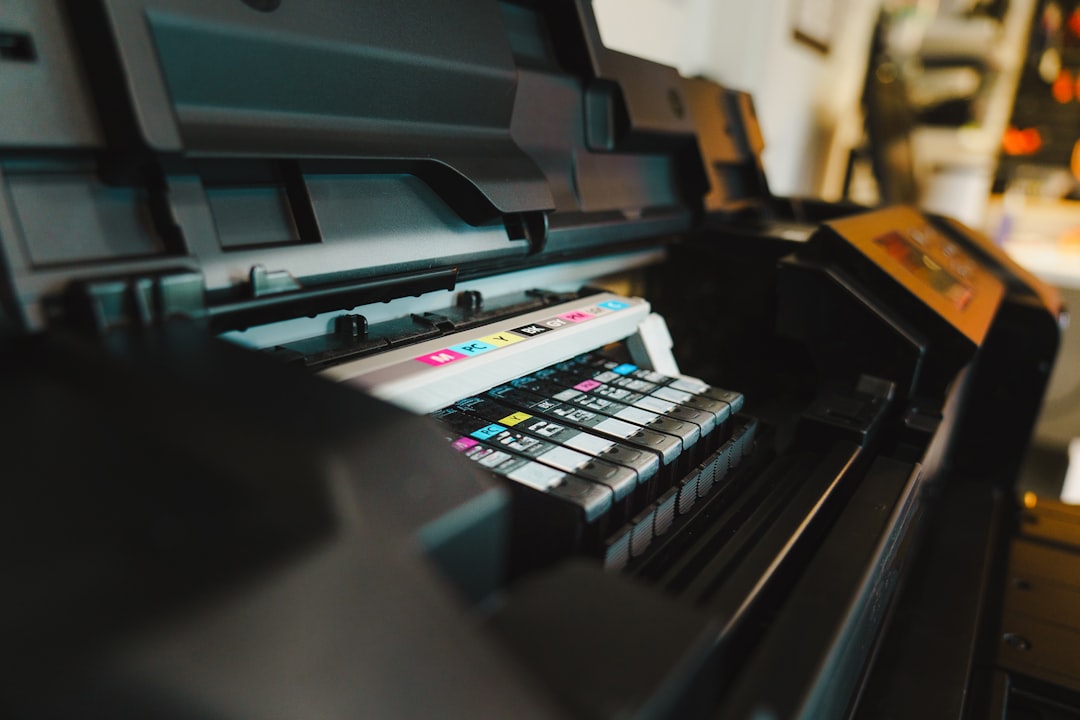
Do not use excessive pressure, and avoid touching the nozzle surface directly. Gently remove clogs using a syringe with cleaning fluid if needed, following manufacturer instructions.
3. Check the Capping Station Alignment
A misaligned capping station won’t create a proper vacuum to pull ink during cleaning cycles. Ensure that the print head aligns precisely over the cap when parked. If it’s lopsided or loose, adjust it according to the service manual or consult a technician.
4. Examine the Wiper Blade
The wiper blade should move smoothly and be free of cracks or hard residue. Replace it if it’s visibly worn or smeared with ink deposits. This blade is critical for removing excess ink without causing splatters or smudges.
5. Look for Air Bubbles in Ink Lines
Air trapped in ink lines can disrupt ink delivery. If visible air bubbles are present, perform a priming or manual ink pumping to clear the lines. Be patient and ensure the ink is traveling smoothly from the tanks to the print head.
6. Update Firmware and Check for Errors
Download the latest firmware updates from the manufacturer’s website. Run self-diagnostics through your printer’s control panel or software suite to rule out non-hardware related errors.

7. Perform a Test Print
Once maintenance is complete, power on the printer and run a nozzle check. If lines appear broken or missing, repeat the cleaning process. A clean, complete nozzle test means the error has likely been resolved.
Preventing Future Occurrences
An ounce of prevention goes a long way in industrial printing. Here are some proactive tips to avoid this error in the future:
- Run Daily Maintenance: Schedule automatic head cleans or manually clean at least once per day when in heavy use.
- Use High-Quality Ink: Low-quality ink can cause clogs and component wear. Stick to trusted brands recommended by the printer manufacturer.
- Maintain Humidity Levels: Optimal humidity (typically 40–60%) prevents ink from drying in the nozzles too quickly.
- Leave the Printer on When Idle: In idle mode, some printers regularly clean themselves to prevent clogging. Keeping the printer powered can be beneficial when not in use.
- Replace Consumables Timely: Components like wiper blades and capping stations have a service lifespan. Replace them before they fail.
When to Call a Technician
If all the DIY methods fail to clear the “Abnormal Ink Stack” error, or if you are unsure about disassembly or internal adjustments, it’s wise to contact a certified technician. Continued operation with unresolved issues may exacerbate the damage and result in higher repair costs or voided warranties.
Signs You Need Expert Help:
- The printer consistently fails nozzle checks even after multiple cleanings.
- The capping station or print head alignment can’t be corrected manually.
- Firmware updates won’t install or cause new errors.
Frequently Asked Questions (FAQ)
What does “Abnormal Ink Stack” mean in a DTF printer?
It refers to an error indicating malfunction within the ink delivery or print head assembly. This includes clogged nozzles, faulty capping stations, or inconsistent ink flow.
Can I fix the Abnormal Ink Stack error myself?
Yes, in most cases. By cleaning the print head, checking alignment, and ensuring ink flow, many users can resolve the issue without professional help.
What causes this error to keep returning?
Recurring Abnormal Ink Stack errors may stem from poor maintenance, low-quality ink, or worn parts that were not replaced during previous repairs.
Is it safe to use cleaning solution on a print head?
Yes, as long as it’s a solution recommended by the printer manufacturer and applied correctly with approved tools like cleaning swabs or syringes.
How often should I clean my DTF printer to avoid this issue?
For commercial usage, daily cleaning is recommended. If the printer is used less frequently, perform full maintenance at least once every few days.
Will replacing the ink solve the problem?
It might, especially if the existing ink has started to coagulate or isn’t flowing properly. However, ensure the new ink is compatible and meets quality standards.
How do I know if the capping station needs replacement?
If the capping station no longer seals or draws ink during cleaning cycles, appears cracked or misaligned, or is excessively dirty, it likely needs replacing.
With the right preventive measures and prompt response to warning signs, users can maintain the efficiency of their DTF printers and avoid costly interruptions caused by the Abnormal Ink Stack error.