


You click on a YouTube video. It says “3 years ago.” That’s helpful. But not really. What if you need the exact upload time? Maybe you are tracking breaking news. Maybe you are checking who posted something first. Or maybe you are just curious. Whatever the reason, you can actually find the precise upload time of a YouTube video. And it’s easier than you think.
TLDR: YouTube only shows the upload date publicly, not the exact time. But you can find the exact upload time by viewing the page source, using browser developer tools, or checking certain third-party tools. The timestamp is hidden in the video’s metadata. With a few clicks, you can uncover the precise date and time down to the second.
Why YouTube Hides the Exact Upload Time
Before we jump into the “how,” let’s understand the “why.”
YouTube displays:
- The full date (e.g., March 10, 2026)
- Or relative time (e.g., 2 years ago)
But it does not show:
- The exact hour
- The exact minute
- The exact second
Why?
Because most viewers don’t need it. It keeps the interface clean and simple. But the data is still there. Hidden. Quietly sitting inside the page code.
Method 1: Check the Page Source (Simple and Effective)
This is the most reliable method. And it works every time.
Here’s how to do it:
- Open the YouTube video.
- Right-click anywhere on the page.
- Click “View Page Source.”
- Press Ctrl + F (or Command + F on Mac).
- Search for: datePublished
You will see something like this:
“datePublished”:”2026-03-10T14:32:15-07:00″
That’s it. That’s the exact upload time.
Let’s break it down:
- 2026-03-10 → March 10, 2026
- 14:32:15 → 2:32:15 PM
- -07:00 → Time zone offset
It’s formatted in ISO 8601 format. Looks technical. But it’s just date and time combined.

This method works on:
- Chrome
- Edge
- Firefox
- Safari (with slight wording differences)
It does not require any extensions. No downloads. No accounts.
Method 2: Use Browser Developer Tools (A Cleaner Way)
If page source feels messy, try Developer Tools.
It sounds scary. It’s not.
Steps:
- Open the YouTube video.
- Press F12 on your keyboard.
- Click the Elements or Network tab.
- Press Ctrl + F.
- Search for datePublished.
You’ll find the same timestamp as in Method 1.
Why use this method?
- The interface is easier to read.
- You can inspect other metadata.
- Great for journalists and researchers.
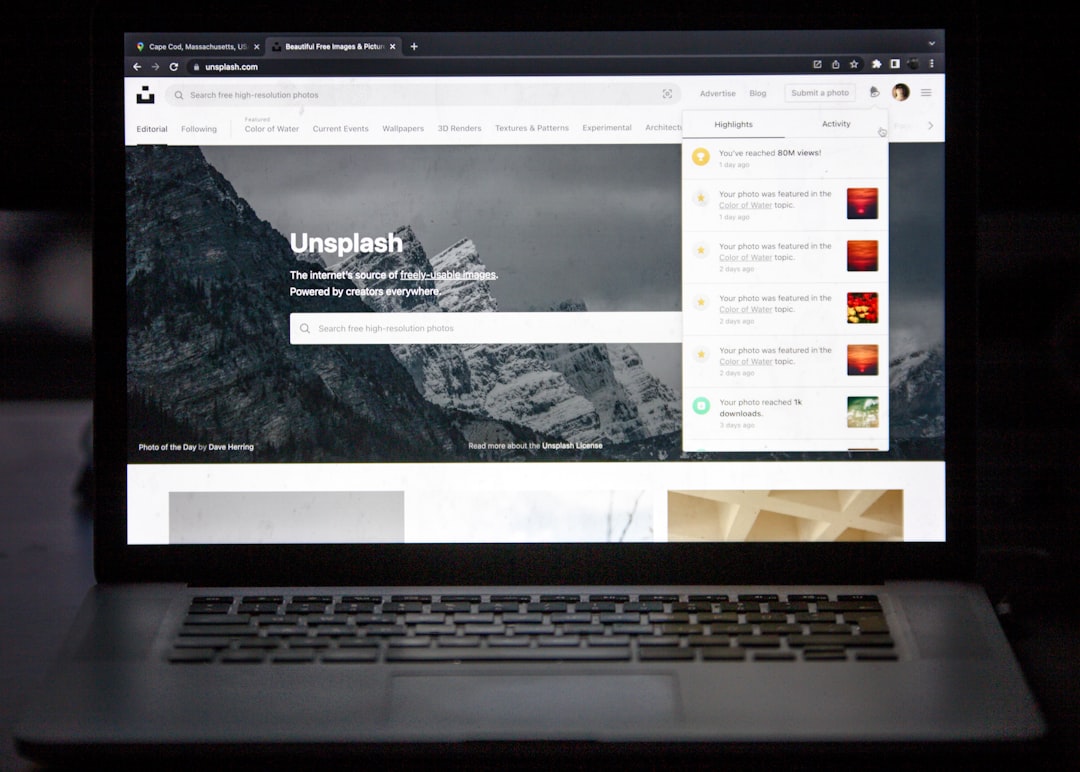
If you’re investigating something important, this method feels more professional.
Method 3: Use Third-Party Tools
Not everyone wants to dig through code. That’s fair.
There are tools that extract video metadata for you.
Popular ones include:
- YouTube Data Viewer (Amnesty International)
- Metadata2Go
- Various YouTube analytics websites
These tools can show:
- Exact upload time
- Video ID
- Thumbnail history
- Metadata changes
But be careful.
Always use trusted sites. Some tools are unreliable. Others may not show the time correctly.
Tool Comparison Chart
| Tool | Shows Exact Time? | Ease of Use | Requires Technical Skills? | Best For |
|---|---|---|---|---|
| YouTube Page Source | Yes | Medium | Low | Everyone |
| Developer Tools | Yes | Medium | Low to Medium | Researchers, journalists |
| YouTube Data Viewer | Sometimes | Easy | No | Quick checks |
| Metadata websites | Varies | Easy | No | Non-technical users |
If accuracy matters most, use Page Source.
Understanding Time Zones (Very Important)
When you find the upload time, you’ll notice something like:
2026-03-10T14:32:15-07:00
That last part matters.
-07:00 means the time is 7 hours behind UTC.
If you want to convert it to your own time zone, you must adjust it.
Example:
- If you’re in New York (UTC-5)
- And the time says -07:00
- Add 2 hours
Now you have your local time.
You can also paste the timestamp into Google. It will convert it automatically.
Easy.
Pro Tips for Accuracy
If you are verifying something serious, follow these tips:
- Refresh the page before checking source code.
- Use desktop, not mobile browser.
- Double-check the video URL.
- Make sure it’s not a re-upload.
Why re-upload?
Because someone might download a video and upload it later. The timestamp only shows when that version was uploaded.
Not the original.
Can You Find the Upload Time in the YouTube App?
Short answer: No.
The YouTube mobile app does not expose that metadata.
Even if you tap around. Even if you long-press.
You need:
- A desktop browser
- Or desktop mode on your phone browser
If you’re on mobile:
- Open the video in Chrome.
- Tap the three dots.
- Select “Desktop site.”
- Then follow Method 1.
Does This Work for Scheduled Videos?
Yes.
The timestamp shows when the video was made public.
Not when it was uploaded privately.
Important difference.
Creators can upload videos days or weeks in advance. But the “datePublished” field reflects the public release time.
What About YouTube Shorts?
Good news.
The method works for:
- Regular videos
- Shorts
- Live stream replays
As long as the video has a watch page URL, you can view the source.
When Knowing the Exact Upload Time Matters
You might wonder: who really needs this?
Actually, many people do.
- Journalists tracking breaking news
- Researchers studying digital trends
- Content creators checking competitors
- Investigators verifying claims
- Copyright disputes
Sometimes, minutes matter.
Sometimes, seconds matter.
Common Mistakes to Avoid
- Looking at the “uploaded” date only.
- Trusting random third-party sites blindly.
- Forgetting time zone conversion.
- Checking the wrong video ID.
Always verify twice if the timing is critical.
Final Thoughts
YouTube may not display the exact upload time openly. But it does not hide it completely. The information is right there in the metadata. Just a simple search away.
The easiest and most accurate method? View the page source and look for datePublished.
No coding knowledge required.
No fancy tools required.
Just curiosity.
Now you know how to find the precise moment a YouTube video went live. Down to the second.
Pretty cool, right?