


So, you’re cruising the web, catching up on cat videos, or trying to pay your bills, when—BAM!—you hit an error: Access Denied. If you’re using T-Mobile internet, you’re not alone. This frustrating problem has been popping up for lots of folks recently.
TL;DR:
If you’re getting an Access Denied error while using T-Mobile internet, don’t panic. The problem usually comes from security or IP issues. Try restarting your gateway, switching DNS settings, using a VPN, or contacting T-Mobile support. Most of the time, it’s fixable with a few quick tricks!
Why Am I Seeing “Access Denied” on T-Mobile?
The “Access Denied” message usually appears when a website blocks your connection. Think of it like a bouncer at a club saying, “Nope, not tonight.” It can happen because:
- The website thinks your IP is suspicious.
- You’re using IPv6, and the site doesn’t like it.
- The T-Mobile network has flagged behavior as risky (even if it’s not).
- Your DNS settings are causing confusion.

Now, let’s fix it. You’ve got options—lots of them—and we’ll walk through the easiest ones.
Quick Fixes That Might Work Instantly
1. Restart Your Gateway or Router
Sometimes, turning it off and back on really is the magic trick.
- Unplug your T-Mobile gateway.
- Wait for 60 seconds.
- Plug it back in and let it reboot fully.
This forces a new connection and could get you a fresh IP. Boom—problem solved. Maybe.
2. Turn Off IPv6 (Yes, Nerdy But Easy)
IPv6 isn’t always fully supported by all websites. And some sites blacklist IPv6 ranges used by mobile carriers.
Here’s the lowdown:
- Log into your router settings (usually 192.168.12.1).
- Go to Network Settings.
- Find the option for IPv6 and toggle it off.
- Save your changes and restart the device.
Try browsing again. Fingers crossed!
Let’s Get a Bit More Techy (Still Easy!)
3. Change Your DNS Settings
The Default DNS provided by T-Mobile might confuse some websites. Try these instead:
- Google DNS: 8.8.8.8 and 8.8.4.4
- Cloudflare DNS: 1.1.1.1 and 1.0.0.1
To change your DNS on most devices:
- Go to Network Settings.
- Select your Wi-Fi or Ethernet connection.
- Choose “Manual” for DNS settings.
- Enter the new DNS numbers.
This change often bypasses website blocks and speeds things up too. Win-win!
4. Use a VPN (Virtual Private Network)
Still having trouble? A VPN can help you sail right past those digital bouncers.
VPNs route your connection through another server. This changes your IP, masks your location, and can even fix Access Denied errors.
There are good free VPNs, but spending a few bucks on a trusted one (like NordVPN or ExpressVPN) usually works better.
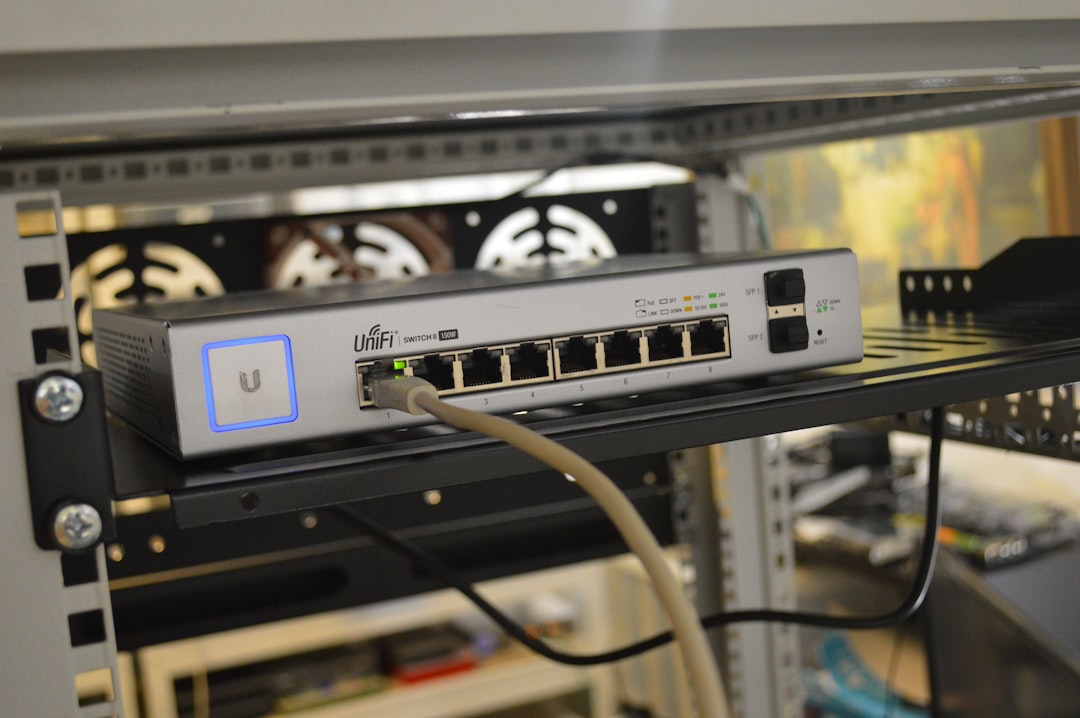
Troubleshooting T-Mobile Gateway Settings
If none of the steps above work, it’s time to dig into the T-Mobile router settings a little deeper.
5. Check for Firmware Updates
- Log into your gateway’s admin page (check the label for instructions).
- Look for a firmware update section.
- If there’s an update available—install it!
Firmware updates can fix bugs, including those causing access or connectivity problems.
6. Disable Web Guard (If Active)
T-Mobile has a parental control called Web Guard. It can sometimes block legit websites.
To disable Web Guard:
- Log in to your T-Mobile account on their site.
- Go to Profile > Family Controls.
- Find Web Guard and turn it off.
Try the website again after toggling Web Guard.
When All Else Fails…
7. Contact T-Mobile Support
Yeah, we know. You wanted to fix it yourself. But if you’ve tried it all and the site is still blocking you, time to call in the pros.
Let T-Mobile know:
- Which websites are giving you Access Denied?
- What fixes you’ve already tried?
- Your IP address (find it by Googling “what’s my IP?”)
They may be able to give you a new IP or clear something on their end.
8. Use Mobile Hotspot (Temporary Fix)
If it’s an urgent website visit—try accessing the site from your phone using a mobile hotspot or cellular browser.
Oddly enough, sometimes mobile data works even when home internet doesn’t.
Bonus Fix: Flush Your DNS Cache
This one’s for PC users. If you’ve changed your DNS settings or fixed something manually, your computer needs to clear out the old info.
On Windows:
- Press Windows + R, type cmd, and hit Enter.
- In the black box, type: ipconfig /flushdns
- Hit Enter. Done!
On Mac:
- Open Terminal.
- Type: sudo killall -HUP mDNSResponder
- Enter your password when asked.
Now try loading the website again.
Will This Happen Again?
It might, but you’re now totally prepared! T-Mobile has a bunch of users, and sometimes websites just get weird about large groups of similar IPs. Many of these tips can be reused if the issue pops up again.
The Fun Recap: What We Did Today
- Restarted the router. Easy win.
- Tinkered with IPv6. Not scary!
- Changed our DNS to bypass confusion.
- Masked our location with a VPN.
- Explored T-Mobile settings like a tech adventurer.
- Contacted support when all else failed.
Time to Browse Freely Again 🎉
Hopefully one of these fixes got you back online—Access Granted!
Bookmark this guide for next time you hit a wall while surfing T-Mobile Internet. And hey, maybe forward it to a friend stuck in error purgatory too!
Happy browsing!