

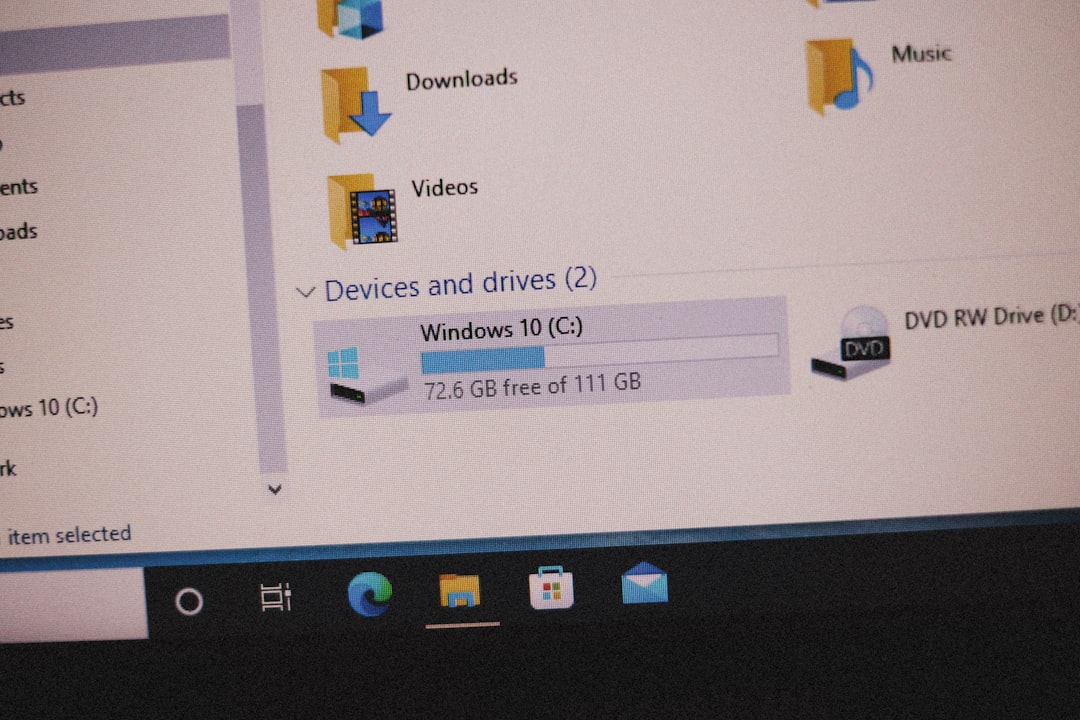
When Compact View in Windows File Explorer keeps turning itself off, the problem is usually not the option itself. In most cases, Windows is failing to save your folder view preferences, a File Explorer setting is corrupted, or another process is overriding the layout. This is frustrating because Compact View is a practical feature: it reduces spacing between files and folders, making File Explorer easier to scan on laptops, smaller monitors, and dense work environments.
TLDR: If Compact View keeps resetting in Windows, first turn it on again from View > Show > Compact view, then apply the setting to folders from Folder Options. If that does not work, reset File Explorer folder views, restart Windows Explorer, and repair system files with SFC and DISM. For persistent cases, clearing File Explorer’s folder view cache in the Registry usually fixes the issue, but you should back up the Registry first.
What Compact View Does in Windows
Compact View is a File Explorer display option in Windows 11 that reduces the amount of vertical spacing between items. With Compact View enabled, files and folders appear closer together, similar to the tighter spacing many users were familiar with in Windows 10 and earlier versions.
This setting is especially useful if you regularly browse folders with many files, work with detailed file lists, or simply prefer a more efficient layout. The problem occurs when Windows appears to accept the setting but later reverts to the default, more widely spaced layout after a restart, File Explorer relaunch, update, or folder change.
Why Compact View Keeps Resetting
There are several common reasons Compact View may not stay enabled. Understanding the cause helps you choose the right fix instead of repeatedly switching the option back on.
- Folder view settings are corrupted: Windows stores folder layout preferences in a cache. If that cache becomes damaged, settings may not persist.
- Different folder templates are being used: Windows applies different views to Documents, Pictures, Music, Videos, and general folders.
- File Explorer is crashing or not closing properly: If Explorer does not save its state, layout changes may be lost.
- A Windows update changed default behavior: Some updates reset visual preferences or rebuild File Explorer settings.
- Third-party customization software is interfering: Explorer toolbars, shell extensions, and UI tweaking tools can override view settings.
- User profile corruption: In some cases, the Windows user profile cannot correctly save Explorer preferences.
1. Turn Compact View On Correctly
Before attempting deeper repairs, confirm that Compact View is enabled through the standard File Explorer menu.
- Open File Explorer.
- Click View on the command bar.
- Select Show.
- Click Compact view.
If the option is enabled, you should immediately see reduced spacing between files and folders. Close File Explorer, reopen it, and check whether the setting remains active. If it resets right away, continue with the next steps.
2. Apply the View to All Folders of the Same Type
Windows does not always apply one view setting universally. It may remember separate layouts for different folder types. Applying your current view to similar folders can help Compact View remain consistent.
- Open a folder where Compact View is enabled.
- Click the three dots menu in File Explorer.
- Select Options.
- Open the View tab.
- Click Apply to Folders.
- Confirm the prompt by selecting Yes.
- Click Apply, then OK.
This does not guarantee every folder type will behave identically, but it often resolves cases where Compact View works in one folder and resets in another.
3. Reset Folder Views and Configure Them Again
If File Explorer’s saved folder layouts are inconsistent or damaged, resetting them can restore normal behavior. This removes custom folder view preferences, but it does not delete your files.
- Open File Explorer.
- Click the three dots menu.
- Choose Options.
- Go to the View tab.
- Click Reset Folders.
- Confirm the reset.
- Enable Compact View again.
- Use Apply to Folders if needed.
This is one of the safest and most effective first repairs because it refreshes File Explorer’s layout data without requiring Registry edits or advanced troubleshooting.
4. Restart Windows Explorer
Sometimes File Explorer simply needs to be restarted so that it can reload settings properly. This is different from restarting your computer, although a full reboot can also help.
- Press Ctrl + Shift + Esc to open Task Manager.
- Find Windows Explorer in the Processes list.
- Right-click it.
- Select Restart.
Your taskbar and open Explorer windows may briefly disappear and return. After that, open File Explorer again, enable Compact View if necessary, and test whether the setting remains saved.
5. Check for Windows Updates
File Explorer behavior is closely tied to Windows system components. If Compact View started resetting after a recent update, another update may already contain a fix. Conversely, if your system is behind on updates, you may be running an older Explorer build with unresolved bugs.
- Open Settings.
- Go to Windows Update.
- Click Check for updates.
- Install available updates.
- Restart your PC.
After restarting, enable Compact View again and observe whether it persists across multiple File Explorer sessions.
6. Repair Windows System Files
If Compact View continues to reset, damaged system files may be preventing File Explorer from saving or reading configuration data correctly. Windows includes built-in repair tools that can check and restore important files.
Open Command Prompt or Terminal as an administrator, then run the following command:
sfc /scannowWait for the scan to finish. If Windows reports that it found and repaired files, restart your computer. Then run these commands one at a time:
DISM /Online /Cleanup-Image /CheckHealthDISM /Online /Cleanup-Image /ScanHealthDISM /Online /Cleanup-Image /RestoreHealthWhen the DISM repair completes, restart the PC again. These commands are safe when used as shown and are commonly recommended for repairing Windows component issues.
7. Clear File Explorer’s Folder View Cache in the Registry
If normal resets do not work, the folder view cache stored in the Windows Registry may be corrupted. Clearing this cache forces Windows to rebuild folder view settings from scratch. This can be highly effective, but it should be done carefully.
Important: The Registry is a sensitive part of Windows. Before making changes, create a restore point or export the relevant Registry keys.
- Press Windows + R.
- Type regedit and press Enter.
- Approve the User Account Control prompt.
- Navigate to:
HKEY_CURRENT_USER\Software\Classes\Local Settings\Software\Microsoft\Windows\ShellLook for the following keys:
- Bags
- BagMRU
Right-click each key and choose Export first, saving a backup somewhere safe. After exporting, right-click Bags and BagMRU again and select Delete. Restart your computer afterward.
Once Windows restarts, open File Explorer, turn on Compact View, configure your preferred layout, and use Apply to Folders. Windows will recreate the deleted Registry keys automatically.

8. Disable Conflicting File Explorer Customization Tools
If you use third-party tools that modify the taskbar, Start menu, right-click menu, icons, or File Explorer interface, they may interfere with layout settings. This is especially likely if Compact View resets only after startup or after the customization tool loads.
Temporarily disable or uninstall applications that modify Windows Explorer. Then restart the PC and test Compact View again. If the issue stops, check the tool’s settings, update it, or leave it disabled.
You should also review shell extensions, especially if File Explorer has been unstable. A problematic shell extension can cause Explorer to crash silently, preventing settings from being saved.
9. Test with a New Windows User Profile
If none of the above fixes work, your Windows user profile may be damaged. A practical way to confirm this is to create a new local user account and test Compact View there.
- Open Settings.
- Go to Accounts.
- Select Other users.
- Add a new user account.
- Sign into the new account.
- Enable Compact View and restart File Explorer.
If Compact View works normally in the new account, the issue is likely profile-specific. You can either migrate to the new profile or continue troubleshooting the original profile by removing customizations and resetting Explorer-related settings.
10. Consider Whether a Recent Update Caused the Problem
If Compact View began resetting immediately after a Windows update, it may be related to a temporary bug. In that case, check whether other users are reporting the same behavior for your Windows build. You can find your version by going to Settings > System > About and checking the Windows specifications.
If the issue is widespread, the safest approach is usually to install the next cumulative update when available. Rolling back updates should be reserved for serious problems, not minor interface preferences, unless the reset is disrupting your workflow significantly.
Best Order to Try the Fixes
For most users, the best approach is to move from simple and safe fixes to more advanced ones:
- Enable Compact View again manually.
- Use Apply to Folders.
- Reset folder views from Folder Options.
- Restart Windows Explorer.
- Install Windows updates.
- Run SFC and DISM.
- Clear the Bags and BagMRU Registry keys.
- Check third-party customization tools.
- Test with a new user profile.
This sequence minimizes risk while still addressing the most common causes of the problem.
Final Thoughts
Compact View resetting in Windows is usually caused by File Explorer failing to save view preferences, not by user error. In many cases, applying the layout to folders or resetting folder views is enough. If the problem persists, repairing system files or clearing the folder view cache can resolve deeper corruption.
The key is to avoid repeatedly toggling Compact View without addressing the underlying cause. Start with the built-in File Explorer options, then move carefully toward advanced repairs only if necessary. With a clean folder view cache and a stable Explorer configuration, Compact View should remain enabled consistently across restarts and folder sessions.