

Locked out of your AOL account? Take a breath. This is fixable. Password problems feel annoying, but the reset process is not a monster. Think of it like finding your house key in the couch cushions. A little searching. A few clicks. Then you are back in.
TLDR: Go to the AOL sign in page, choose Forgot password?, and follow the prompts. Use your recovery phone number or recovery email to get a verification code. Create a strong new password, save it safely, and sign in again. If the code does not arrive, check spam, wait a few minutes, or try another recovery option.
Why AOL Password Resets Happen
Passwords get lost. It happens to everyone. Maybe you changed it last year. Maybe your browser stopped saving it. Maybe your cat walked across the keyboard and now your password is a mystery novel.
AOL may also ask you to reset your password for safety. This can happen if there is unusual activity. It can also happen if you try the wrong password too many times. AOL wants to protect your email, contacts, and personal info.
The good news is simple. You can reset your AOL password using the official sign in tools. You need access to your recovery email or recovery phone. That is the magic key.
Before You Start
Get a few things ready first. This makes the process faster. Like putting on socks before shoes. Small step. Big help.
- Your AOL email address or username.
- Your recovery phone, if you added one.
- Your recovery email, if you added one.
- A few quiet minutes. No panic clicking.
- A secure internet connection. Avoid public Wi Fi if possible.
If you do not have access to your recovery email or phone, things can take longer. But do not give up yet. AOL may still offer other account recovery options.
How to Reset Your AOL Password
Here is the simple path. Follow it one step at a time. No cape required.
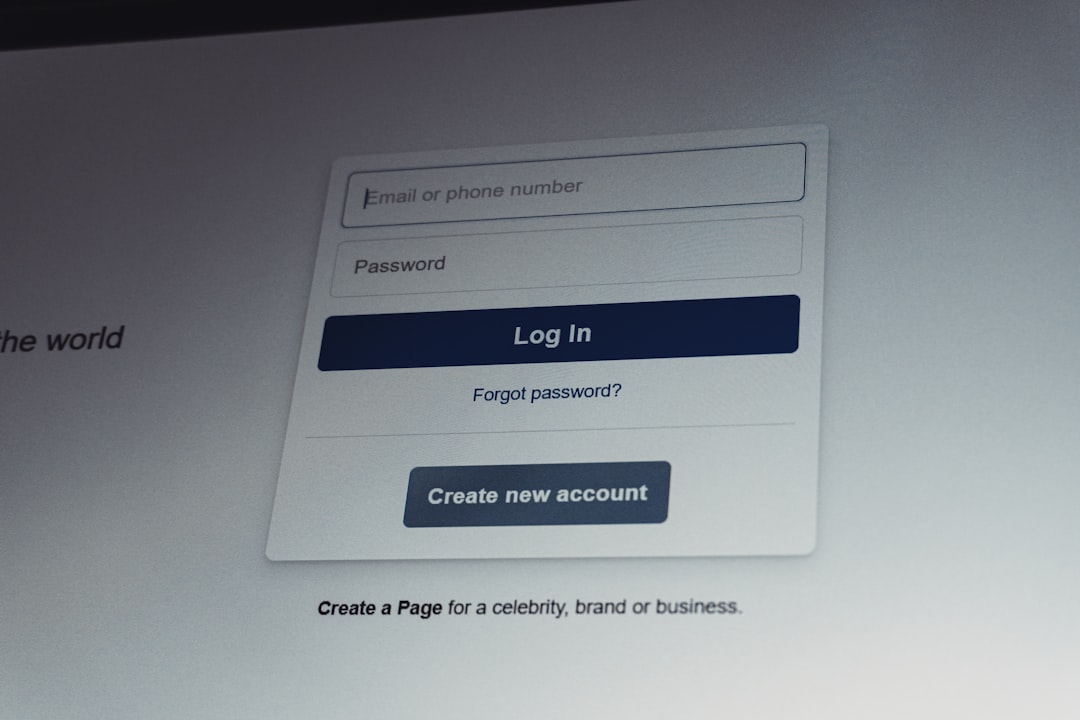
- Go to the AOL sign in page.
- Enter your AOL email address or username.
- Click Next.
- Select Forgot password? or a similar recovery option.
- Choose how you want to get your verification code.
- Check your phone or recovery email.
- Enter the code on the AOL page.
- Create a new password.
- Confirm it.
- Sign in with your new password.
That is the main road. Stay on the official AOL pages. Do not use random “password recovery” websites. Those can be risky. Some are fake. Some are traps. The real reset process should happen through AOL.
How to Choose a Strong New Password
Your new password should be tough. Not tough for you. Tough for strangers. A weak password is like leaving your front door open with a sign that says, Snacks inside.
Use a password that is:
- Long. Aim for at least 12 characters.
- Unique. Do not reuse an old password.
- Mixed. Use letters, numbers, and symbols.
- Not obvious. Avoid names, birthdays, and “password123”.
Try a phrase you can remember. For example, turn a silly sentence into a password. My green turtle eats pizza at 7 could become something stronger with symbols and mixed letters. Keep it private. Your password should not be shared, even with your best friend, your cousin, or that one coworker who “knows computers.”
How to Sign In Quickly After Resetting
Once your password is reset, signing in should be quick. Go back to the AOL sign in page. Enter your email. Enter the new password. Click sign in. Boom. You are back.
If your browser asks to save the password, think before you click. Saving it on your own personal device can be handy. Saving it on a shared computer is not a good idea. Public computers are even worse. Do not save passwords there.
You can also use a trusted password manager. It stores your passwords in a safe vault. Then you do not have to remember every tiny symbol. Your brain gets a vacation.

What If the Verification Code Does Not Arrive?
This is common. And yes, it is annoying. But there are easy things to try.
- Wait a few minutes. Codes can be slow.
- Check your spam folder. Emails love to hide there.
- Check your phone signal. Text messages need service.
- Make sure the recovery info is correct. Look for clues on the screen.
- Try another option. Use email instead of phone, or phone instead of email.
- Do not request too many codes fast. This can cause delays.
If you receive several codes, use the newest one. Old codes may stop working. Think of them like bananas. Fresh is best.
What If You No Longer Have the Recovery Email or Phone?
This is trickier. But it is not the end of the story. On the recovery page, AOL may ask you to confirm more details. Answer as accurately as you can.
You may be asked about:
- Past passwords.
- Account details.
- Recent activity.
- Recovery options you used before.
Be patient. Account recovery systems are strict for a reason. They are protecting your account from strangers. If someone else tried to break in, you would want the guards to be picky.
If you cannot prove ownership, you may not be able to recover the account right away. This is why recovery info matters so much. Once you get back in, update it quickly.
Update Your Recovery Info
After you sign in, visit your account security settings. Make sure your recovery phone and recovery email are current. This is like putting a spare key in a smart place. Not under the doormat. Somewhere safe.
Update these items:
- Recovery phone number.
- Recovery email address.
- Account security questions, if available.
- Two step verification, if offered.
Two step verification adds another layer of protection. It usually sends a code to your phone or app when you sign in. Even if someone gets your password, they still need the code. That is a very grumpy bouncer at the door. In a good way.
Common AOL Sign In Problems
Sometimes the password is not the only problem. Here are other gremlins that may block sign in.
Wrong Username
Make sure you are using the correct AOL email address. A small typo can stop everything. Check dots, letters, and spelling.
Old Saved Password
Your browser may keep filling in an old password. Delete it from the password field. Type the new one yourself. If that works, update the saved password.
Caps Lock Is On
Classic villain. Passwords care about capital letters. Check Caps Lock before you blame the internet.
Browser Trouble
Clear your browser cache. Try a private window. Or use a different browser. Sometimes browsers get cranky.
App Sign In Issues
If you use AOL Mail in a phone mail app, you may need to update the password there too. Open the app settings. Find the AOL account. Enter the new password. Save it.

Safety Tips for Your AOL Account
A fast sign in is nice. A safe sign in is better. You want both. Like fries and ketchup.
- Never share your password. Not by text. Not by email. Not ever.
- Ignore scary fake emails. Scammers love urgent messages.
- Check the website address. Make sure you are on a real AOL page.
- Use a password manager. It helps avoid weak passwords.
- Sign out on shared devices. Always.
- Review account activity. Look for strange logins.
If an email says your AOL account will close unless you click a strange link, be careful. That may be phishing. Instead of clicking, go directly to the AOL site yourself. Type the address into your browser. This keeps you away from fake login pages.
When to Reset Your AOL Password Again
You do not need to reset your password every Tuesday while eating toast. But you should reset it in certain situations.
- You think someone else knows it.
- You used the same password on another hacked site.
- You see emails you did not send.
- Your contacts get strange messages from you.
- Your account settings changed without you.
If any of these happen, reset your password right away. Then update recovery info. Also check mail forwarding settings. Bad actors sometimes add forwarding rules to spy on incoming mail.
Quick Sign In Checklist
Want the speedy version? Keep this checklist nearby.
- Go to the official AOL sign in page.
- Enter your username.
- Use your current password.
- If it fails, click Forgot password?.
- Verify with phone or email.
- Create a strong new password.
- Save it safely.
- Update recovery info.
Final Thoughts
Resetting your AOL password does not have to be scary. It is just a short security dance. Click, verify, reset, sign in. Maybe do a tiny victory wiggle after.
The key is to use official AOL recovery tools. Keep your recovery phone and email updated. Choose a strong password. Watch out for fake links. Then signing in becomes quick, simple, and much less dramatic.
Your inbox is waiting. Go unlock it like the email wizard you are.