

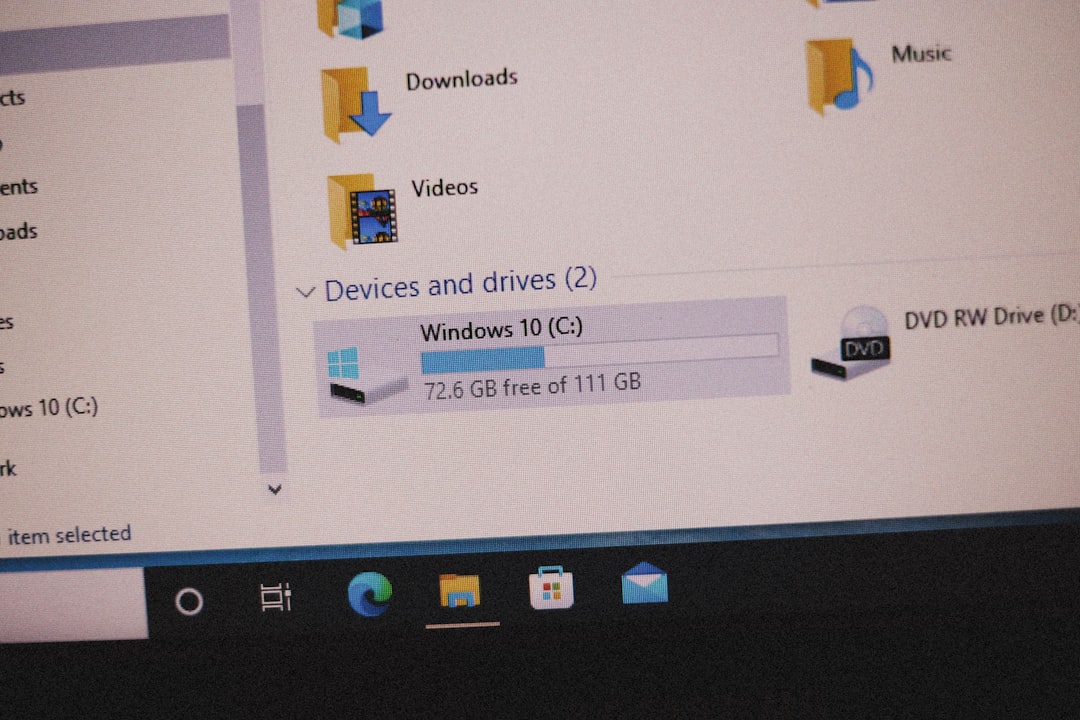
If you have ever checked your Windows installation drive and noticed that the WinSxS folder is consuming several gigabytes of space, you are not alone. For many users, this mysterious system folder appears to grow endlessly over time, raising concerns about disk space and overall system health. Before you attempt to delete anything manually, it is essential to understand what the WinSxS folder actually does and how to reduce its size safely.
TL;DR: The WinSxS folder stores critical Windows system files and backup components required for updates and feature changes. Its large size is often due to system updates and component versioning, but much of the displayed size is misleading. You should never delete files in WinSxS manually; instead, use built-in tools like Disk Cleanup, DISM, or Storage Sense to reduce it safely. Proper cleanup can reclaim several gigabytes without harming your system.
What Is the WinSxS Folder?
The WinSxS folder, located at C:\Windows\WinSxS, is known as the Windows Component Store. It contains:
- Core Windows system components
- Multiple versions of system files
- Files required for Windows updates and patches
- Data needed to enable or disable Windows features
Windows keeps multiple versions of certain components so that updates can be rolled back if necessary. This ensures stability and recovery options but causes the folder to grow over time.
Image not found in postmetaOne important detail: the size shown in File Explorer is often misleading. The folder uses hard links, meaning many files appear multiple times but do not actually consume additional physical disk space. This is why manually calculating its size can give an inflated number.
Why the WinSxS Folder Becomes Too Large
Several factors contribute to a growing WinSxS folder:
- Frequent Windows updates that replace older components
- Feature upgrades (e.g., moving from one Windows version to another)
- Optional feature installation such as .NET Framework or Hyper-V
- Service pack backups stored for rollback purposes
Over time, outdated components remain stored in case you need to uninstall an update. While this increases the folder’s footprint, it also protects your operating system from instability.
Important Warning: Do Not Delete Files Manually
It may be tempting to open the WinSxS folder and start deleting files directly. This is extremely risky and can:
- Break Windows updates
- Corrupt essential system files
- Prevent Windows from booting properly
- Remove the ability to roll back updates
Microsoft explicitly warns against manual deletion. Instead, always use official cleanup methods described below.
How to Check the Actual WinSxS Size
Before cleaning, you can analyze the real component store size using the built-in Deployment Image Servicing and Management (DISM) tool.
- Right-click the Start button.
- Select Windows Terminal (Admin) or Command Prompt (Admin).
- Run the command:
DISM /Online /Cleanup-Image /AnalyzeComponentStore
This command provides detailed information, including:
- Actual size of the component store
- Recommended cleanup actions
- Number of reclaimable packages
Safe Methods to Reduce WinSxS Folder Size
1. Use Disk Cleanup
Disk Cleanup is the simplest method and requires no advanced technical knowledge.
- Press Windows + S and type Disk Cleanup.
- Select your system drive (usually C:).
- Click Clean up system files.
- Check Windows Update Cleanup.
- Click OK.
This process removes outdated update files that are no longer needed.
2. Use DISM Cleanup Command
For deeper cleaning, use DISM:
DISM /Online /Cleanup-Image /StartComponentCleanup
This command removes superseded versions of components.
If you want a more aggressive cleanup that prevents uninstalling certain updates:
DISM /Online /Cleanup-Image /StartComponentCleanup /ResetBase
Warning: Using /ResetBase makes all current updates permanent and cannot be uninstalled.
3. Enable Storage Sense
Windows 10 and 11 include Storage Sense, which can automatically remove temporary files and unused system data.
- Go to Settings > System > Storage.
- Turn on Storage Sense.
- Configure cleanup schedules.
4. Remove Unused Windows Features
If you enabled optional features you no longer need, disabling them can reduce component storage.
- Open Control Panel.
- Select Programs > Turn Windows features on or off.
- Uncheck unused features.
Comparison of Cleanup Methods
| Method | Difficulty | Space Reclaimed | Risk Level | Best For |
|---|---|---|---|---|
| Disk Cleanup | Easy | Moderate | Very Low | Most users |
| DISM StartComponentCleanup | Moderate | High | Low | Advanced users |
| DISM with ResetBase | Advanced | Very High | Medium | Systems not needing update rollback |
| Storage Sense | Easy | Low to Moderate | Very Low | Automatic maintenance |
How Much Space Can You Expect to Recover?
Typical cleanup results vary:
- 2–5 GB on regularly updated systems
- 5–10 GB+ on systems that have not been cleaned in years
- Even more after major feature updates
Keep in mind that WinSxS will never shrink to a tiny folder. It is a core operating system component by design.
When Should You Clean the WinSxS Folder?
Cleaning is appropriate when:
- Your system drive is running low on space
- Large Windows updates have recently been installed
- You have confirmed reclaimable packages via DISM
However, if you have plenty of disk space, frequent aggressive cleanup is unnecessary. The component store is optimized to manage itself efficiently in modern Windows versions.
Common Myths About WinSxS
Myth 1: It Is Safe to Delete the Folder
False. Deleting WinSxS will break Windows. The operating system depends on this folder for core functionality.
Myth 2: The Reported Size Is 100% Accurate
False. Hard links make the size appear larger than actual disk usage.
Myth 3: Third-Party Cleaners Are Better
Not necessarily. Built-in Windows tools are safer and specifically designed for component cleanup.
Best Practices for Managing System Disk Space
Beyond WinSxS cleanup, consider these long-term strategies:
- Run Disk Cleanup monthly
- Enable Storage Sense for automation
- Uninstall unused applications
- Move large personal files to secondary drives
- Consider upgrading to a larger SSD if space remains tight
Modern Windows systems are designed to handle component storage efficiently. The key is not aggressive manual intervention, but consistent and safe maintenance.
Final Thoughts
The WinSxS folder may look alarmingly large, but it exists for a very important reason: maintaining the integrity, stability, and recoverability of your Windows operating system. Deleting files manually can cause serious damage, but using trusted tools such as Disk Cleanup and DISM allows you to reclaim valuable storage without compromising system reliability.
If you are running out of disk space, focus on safe cleanup methods and regular maintenance. With the right approach, you can reduce unused components, maintain update stability, and ensure your system continues running smoothly for years to come.