

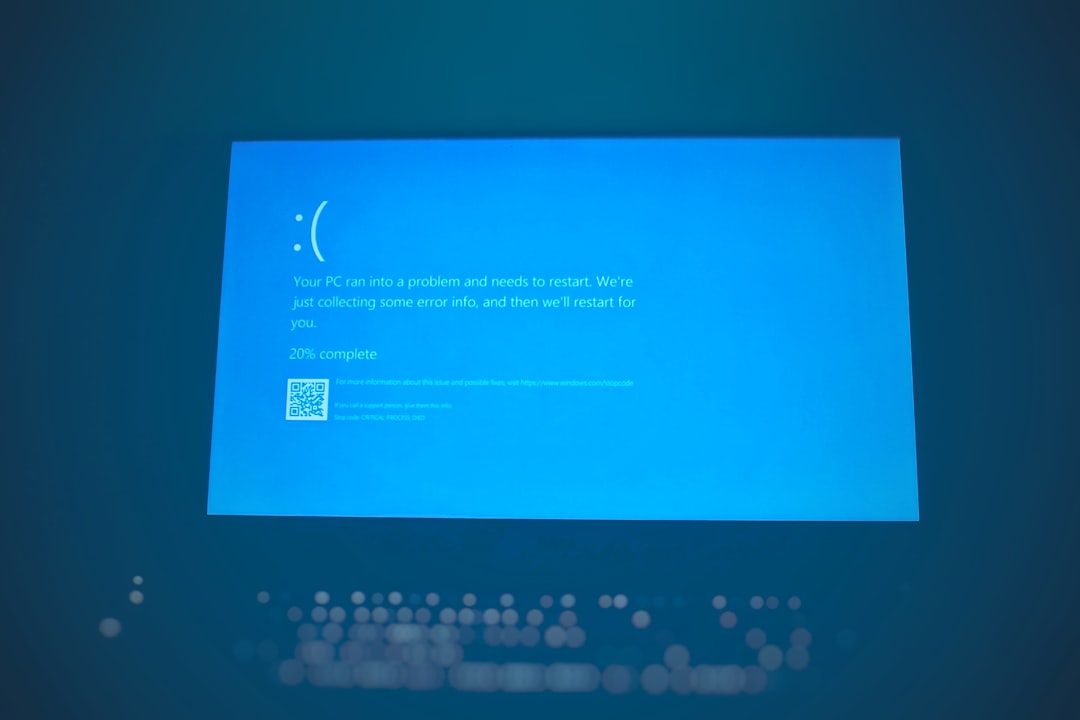
Ryujinx is one of the most popular Nintendo Switch emulators available today, but like any complex software, it isn’t immune to errors. One of the most common and frustrating messages users encounter is: “Ryujinx has encountered an error.” Whether it appears at launch, during gameplay, or after a recent update, this message can feel vague and unhelpful at first glance.
TL;DR: The “Has Encountered an Error” message in Ryujinx usually appears due to outdated versions, incompatible firmware, corrupted game files, GPU driver issues, or incorrect emulator settings. Most of the time, the fix involves updating Ryujinx, verifying game dumps, updating graphics drivers, or adjusting configuration settings. Understanding what causes the error makes it far easier to troubleshoot quickly and get back to playing.
Let’s break down why this happens and what you can do about it.
Understanding What the Error Actually Means
When Ryujinx displays the message “has encountered an error”, it’s essentially telling you that something went wrong during execution — but it doesn’t always explain exactly what.
Unlike console hardware, emulators operate in a highly complex software environment. They must:
- Translate Switch system instructions into PC-friendly code
- Emulate GPU behavior
- Read encrypted firmware files
- Interact with your specific hardware drivers
- Manage memory precisely
Even a small misconfiguration in one of these areas can trigger a crash.
1. Outdated Version of Ryujinx
One of the most common causes of this error is running an outdated version of the emulator.
Ryujinx is updated frequently to:
- Improve compatibility with new games
- Fix rendering bugs
- Patch crash issues
- Improve performance
If you’re trying to run a recently released game on an older build of Ryujinx, the emulator may fail unexpectedly.
How to Fix It
- Enable automatic updates in settings
- Download the latest build from the official source
- Delete old configuration files if problems persist
Keeping your emulator current is often the simplest and most effective solution.
2. Missing or Outdated Firmware
Ryujinx requires Nintendo Switch firmware files to function correctly. If your firmware version is:
- Too old for the game
- Improperly installed
- Missing system archives
The emulator may crash immediately after launch or while loading a game.
Each Switch title typically requires a minimum firmware version. When the emulator can’t match that requirement, it may throw an error instead of displaying a helpful prompt.
Solution
- Install the latest Switch firmware dump
- Verify firmware integrity
- Restart the emulator after installation
3. Corrupted or Incomplete Game Files
Another extremely common cause is an improperly dumped or corrupted game file.
Ryujinx only works with correctly dumped:
- XCI files
- NSP files
- Homebrew content
If a game dump is incomplete or modified incorrectly, Ryujinx may crash while loading shaders, compiling code, or accessing assets.
Image not found in postmetaWhat You Should Do
- Redump the game from your Switch
- Avoid unofficial file modifications
- Verify file integrity using hash checks
Many “mystery crashes” are solved simply by replacing the game file with a clean dump.
4. Graphics Driver Problems
Because Ryujinx heavily relies on your GPU to emulate the Switch’s graphics pipeline, driver issues frequently trigger crashes.
Common GPU-related causes include:
- Outdated drivers
- Experimental driver versions
- Incompatible Vulkan or OpenGL settings
- GPU shader compilation failures
Since Ryujinx primarily uses Vulkan for performance, having stable and updated GPU drivers is essential.
Recommended Fix
- Update GPU drivers from NVIDIA, AMD, or Intel
- Clean install drivers if problems persist
- Switch between Vulkan and OpenGL (for testing)
5. Incorrect Emulator Settings
Sometimes the problem isn’t your game or drivers — it’s your configuration.
Ryujinx provides powerful customization options, including:
- Resolution scaling
- Shader cache settings
- Memory layout options
- CPU accuracy modes
- Multicore scheduling
While these settings can dramatically improve performance, pushing them too far can cause instability.
Common Problem Settings
- High resolution scaling on weak GPUs
- Disabled shader cache
- Manual memory tweaks
- Experimental features
Tip: If crashes begin after changing settings, revert everything to default and test again.
6. Insufficient System Resources
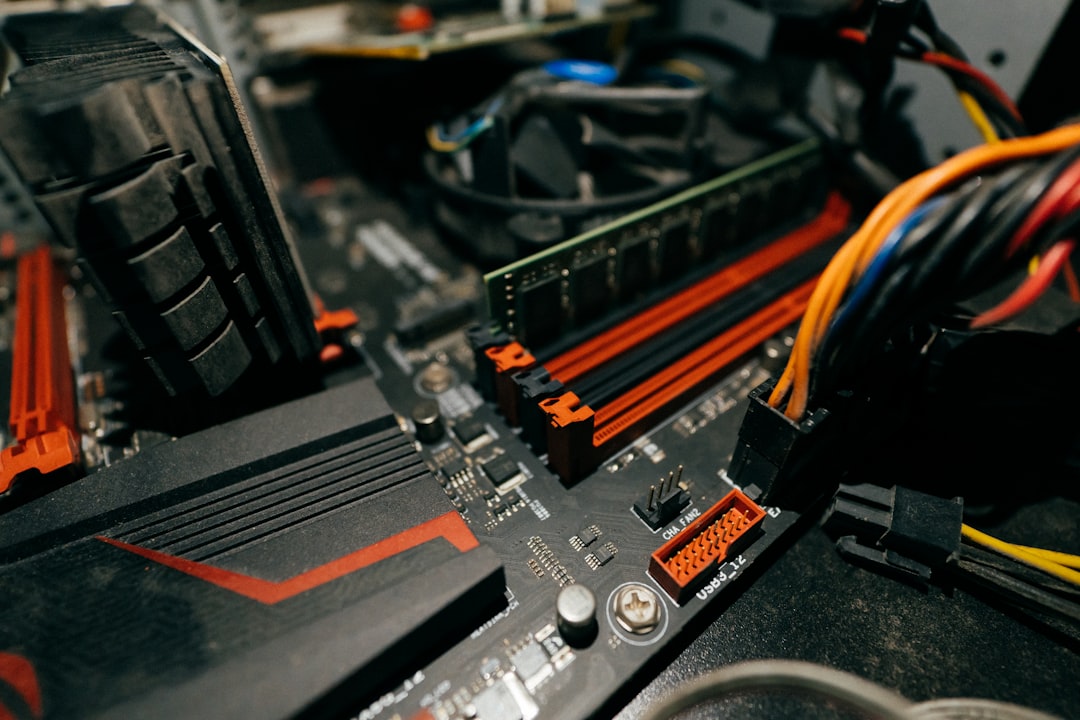
Switch emulation is demanding. Ryujinx requires:
- A strong multi-core CPU
- At least 8 GB of RAM (16 GB recommended)
- A modern GPU
If your system runs out of RAM or VRAM, the emulator may crash suddenly with the generic error message.
How to Check
- Open Task Manager while running a game
- Monitor CPU and RAM usage
- Close background programs
Running browsers, streaming software, and other heavy applications simultaneously may overload your system.
7. Shader Cache Conflicts
Shader compilation is one of the trickiest aspects of emulation. Ryujinx builds a shader cache over time to improve performance. However, this cache can become:
- Corrupted
- Outdated after emulator updates
- Incompatible with driver changes
When that happens, the emulator may crash during startup or mid-game.
Fix
- Delete the shader cache folder
- Allow Ryujinx to rebuild shaders
This may temporarily cause stuttering as shaders recompile, but it often resolves stability issues.
Quick Comparison of Common Causes and Fixes
| Cause | Symptoms | Difficulty to Fix | Recommended Action |
|---|---|---|---|
| Outdated Ryujinx | Crash at launch | Easy | Update emulator |
| Old Firmware | Game fails to load | Moderate | Install latest firmware |
| Corrupted Game File | Random crashes | Moderate | Redump game |
| GPU Driver Issue | Graphics crash | Easy | Update drivers |
| Incorrect Settings | Instability mid-game | Easy | Restore defaults |
| Low System Resources | Crash under load | Hard (hardware) | Upgrade hardware |
| Shader Cache Conflict | Crash during shader build | Easy | Delete shader cache |
How to Systematically Troubleshoot the Error
If you’re unsure of the root cause, follow this order:
- Update Ryujinx
- Update GPU drivers
- Verify firmware version
- Reset emulator settings to default
- Delete shader cache
- Test with another game
- Monitor system resource usage
This systematic approach prevents guesswork and helps isolate the issue efficiently.
Why the Error Message Is So Vague
You might wonder why Ryujinx doesn’t provide clearer explanations.
The reality is that emulator crashes can originate from:
- Low-level GPU calls
- Memory allocation failures
- Instruction translation problems
- Game-specific behavior
Many of these errors occur deep inside driver or hardware interactions, making it difficult to present user-friendly messages. Developers rely on logs to diagnose specific cases.
If you want deeper insight, check the Ryujinx log file after a crash. It often contains detailed technical information.
Final Thoughts
The “Ryujinx has encountered an error” message can be frustrating, but it’s rarely random. In most cases, the cause falls into one of a few predictable categories: outdated software, firmware mismatches, corrupted game files, GPU driver issues, or system limitations.
The good news? Most fixes are straightforward. Regular updates, clean game dumps, stable drivers, and sensible configuration settings go a long way toward maintaining stability.
Emulation is an intricate balance between hardware, software, and compatibility layers. When something tips that balance, errors happen. But armed with a systematic troubleshooting strategy and a bit of patience, you can usually restore Ryujinx to smooth, stable performance — and get back to enjoying your favorite Switch titles.