


Sometimes you build a beautiful page in Elementor. The layout is clean. The images pop. The call-to-action shines. And then… the header gets in the way. Maybe you want a landing page without distractions. Maybe you want a secret sales page. Or maybe you just like that clean, minimal look.
Good news. Hiding the header in Elementor is easy. And you have a few different ways to do it.
TL;DR: You can hide the header in Elementor by using page settings, Elementor Canvas, theme settings, or custom CSS. The easiest method is choosing Elementor Canvas as your page layout. If you only want it hidden on one page, use page-level settings. For advanced control, use CSS. Pick the method that fits your theme and skill level.
Why Hide the Header?
Before we jump in, let’s understand why this matters.
- Landing pages convert better without distractions.
- Sales funnels need focus.
- Coming soon pages look cleaner without navigation.
- Custom designs may not need a default header.
Less clutter. More focus. More clicks.
Method 1: Use Elementor Canvas (Easiest Way)
This is the simplest method. No coding. No stress.
Elementor comes with a special layout called Elementor Canvas. It removes the header and footer completely.
Image not found in postmetaStep-by-Step
- Edit your page with Elementor.
- Click the gear icon in the bottom left corner.
- Find the Page Layout dropdown.
- Select Elementor Canvas.
- Click Update.
Done. Your header is gone.
When to Use This
- You want a completely blank page.
- You’re building a landing page.
- You don’t need header or footer.
Important: This removes both header and footer. Not just the header.
Method 2: Use Elementor Full Width (Keep Header Structure)
If you don’t want to remove everything, try Elementor Full Width.
This keeps the theme structure but gives more design control.
How to Do It
- Edit the page with Elementor.
- Click the gear icon.
- Choose Elementor Full Width from Page Layout.
- Update the page.
This may or may not remove the header depending on your theme.
If your theme still shows the header, you’ll need another method below.
Method 3: Hide Header Using Theme Settings
Many WordPress themes include built-in controls.
Popular themes like Astra, OceanWP, and GeneratePress allow you to disable the header per page.
General Steps
- Go to your WordPress dashboard.
- Edit the page normally (not inside Elementor).
- Look for Theme Settings or Page Settings.
- Find an option like Disable Header.
- Check the box.
- Update the page.
Easy. Clean. No coding required.
Theme Examples
- Astra: Disable Header option in Astra Settings.
- OceanWP: Disable Top Bar and Header in page settings.
- GeneratePress: Layout meta box lets you disable elements.
If your theme has this feature, use it. It’s the safest way.
Method 4: Use Elementor Pro Theme Builder
If you have Elementor Pro, things get powerful.
You can control where your header appears.
How It Works
With Theme Builder, headers have display conditions. You can choose where they show.
Step-by-Step
- Go to Templates → Theme Builder.
- Click Header.
- Select your header template.
- Click Edit Conditions.
- Exclude the specific page where you want no header.
- Save.
Now your header will not appear on that page.
This method is perfect if:
- You want control over multiple pages.
- You manage complex sites.
- You want advanced customization.
Method 5: Hide Header Using Custom CSS
This is for users who like precision.
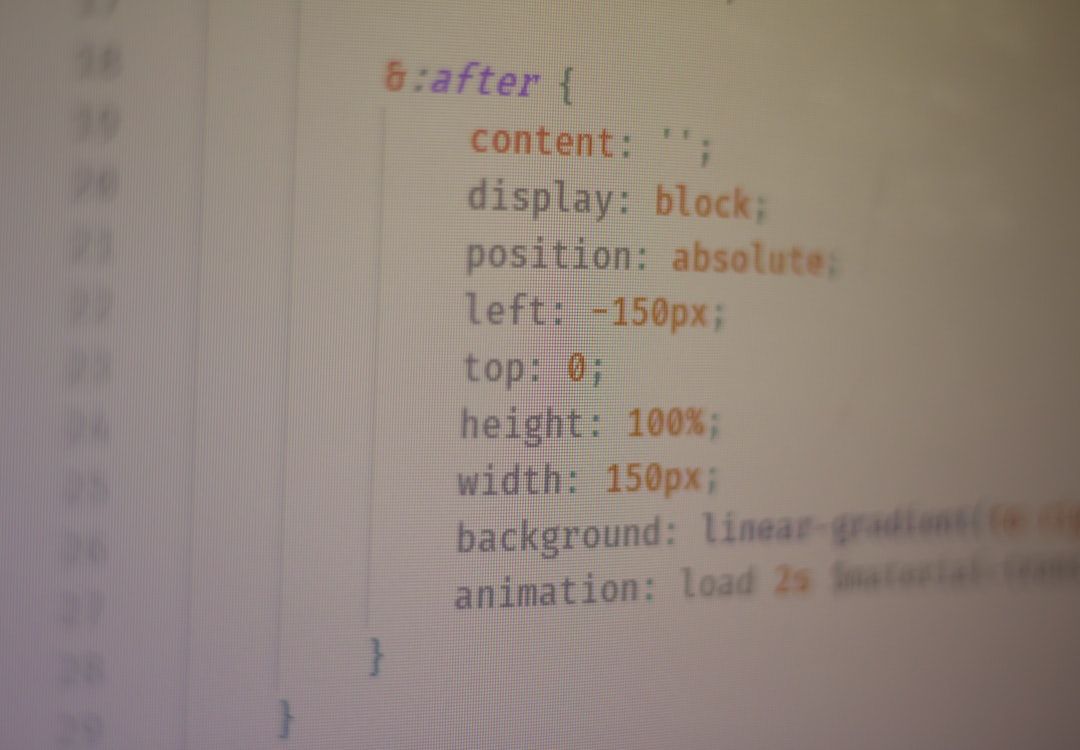
You can hide the header with a little CSS.
But first, you must identify your header’s CSS class or ID.
Step 1: Inspect the Header
- Open your website.
- Right-click the header.
- Click Inspect.
- Find the header class (often something like .site-header).
Step 2: Add CSS
Add this code:
.site-header {
    display: none;
}
Where to Add It
- Appearance → Customize → Additional CSS
- Or in Elementor Pro → Page Settings → Custom CSS
This hides the header.
Warning: This might hide it everywhere. So be careful.
If you only want to hide it on one page, use:
.page-id-123 .site-header {
    display: none;
}
Replace 123 with the actual page ID.
Quick Comparison of Methods
| Method | Difficulty | Removes Footer? | Best For |
|---|---|---|---|
| Elementor Canvas | Very Easy | Yes | Landing pages |
| Elementor Full Width | Easy | No | Flexible layouts |
| Theme Settings | Easy | No | Theme-specific builds |
| Theme Builder (Pro) | Medium | No | Advanced control |
| Custom CSS | Advanced | No | Precise targeting |
Common Problems (And Fixes)
1. Header Still Shows
Your theme may override Elementor settings. Try using Canvas or theme page options.
2. There’s White Space at the Top
Your theme might add padding. Add custom CSS:
body {
    margin: 0;
    padding: 0;
}
3. Menu Is Still Visible
You may have multiple header sections. Inspect again and hide the correct class.
Best Practice Tips
- Always test on mobile. Headers behave differently on small screens.
- Check tablets too.
- Clear caching plugins after changes.
- Back up your site before adding CSS.
Small habits. Big peace of mind.
When You Should NOT Hide the Header
Yes. There are times to keep it.
- Blog posts need navigation.
- Ecommerce stores need menu access.
- Large sites need structure.
If users get lost, they leave.
Use header removal wisely.
Final Thoughts
Hiding the header in Elementor is not complicated.
You have options. Simple ones. Powerful ones. Technical ones.
If you want fast and easy, choose Elementor Canvas.
If you want control, use Theme Builder.
If you want precision, use custom CSS.
The best method depends on your goal.
Clean landing page? Remove it.
Sales funnel? Remove it.
Branded website navigation? Keep it.
Design is about intention.
Now you know how to remove distractions and build focused, high-converting pages with Elementor.
Go ahead. Try it on your next page.
Simple changes. Big impact.