

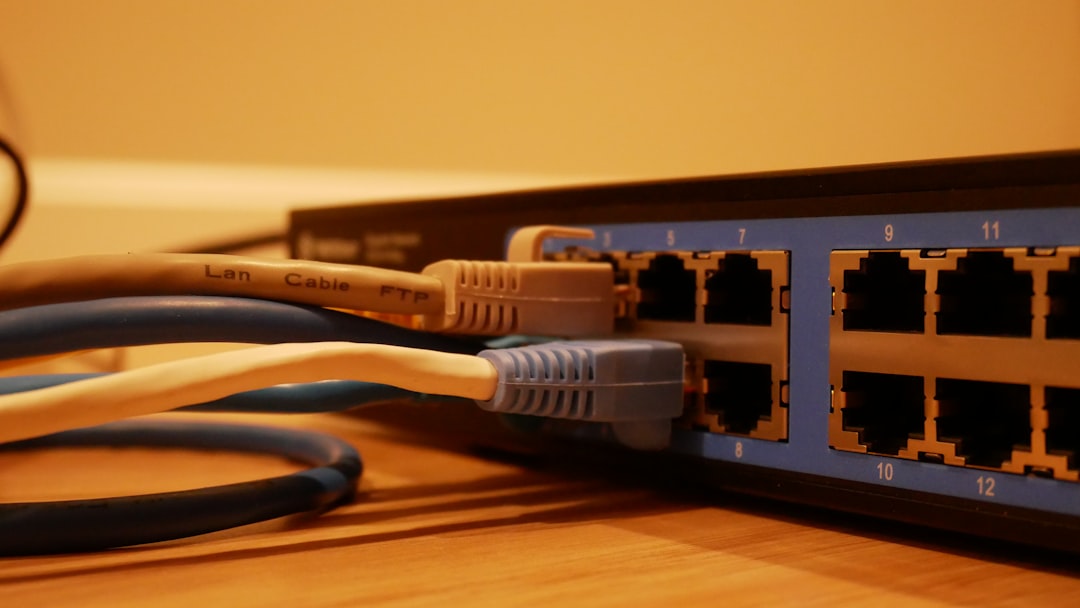
So, you’re diving into the world of IPTV and you want to add a Stalker Portal link to your Rogers WiFi router? That’s super cool! Whether you’re tweaking your setup for a better streaming experience or just love to fiddle with tech stuff, you’ve come to the right place. Don’t worry — we’ll keep things fun, simple, and jargon-free!
TL;DR
Adding a Stalker Portal link to your IPTV setup is about getting your device and network to talk to each other properly. While you can’t directly add the link inside your Rogers router, you can use the router settings to optimize how your device accesses the portal. Most of the work happens on your IPTV box or app. Router settings simply make the connection smoother and faster.
What the Heck is a Stalker Portal?
It may sound scary, but this stalker isn’t creepy — it’s techie!
Stalker Portal is a type of IPTV middleware. In simpler words, it’s a way for your device (like a MAG box or IPTV app) to connect to a server that streams TV channels. Think of it like a doorman that gives you access to thousands of shows and live programs.
The Stalker Portal link usually looks something like this:
http://your.iptvprovider.com/stalker_portal/c/
This link needs to be put into your IPTV device or app — not directly into the router. But, and here’s the twist, your Rogers WiFi can help make that link work better!
Step 1: Gather What You Need
To get started, make sure you have the following:
- Your Rogers WiFi router login (usually found on the bottom of your modem or in your Rogers app)
- Your Stalker Portal URL from your IPTV provider
- The device you want to stream IPTV on (smart TV, MAG box, Firestick, etc.)
- Web browser and a cup of coffee (optional but recommended!)
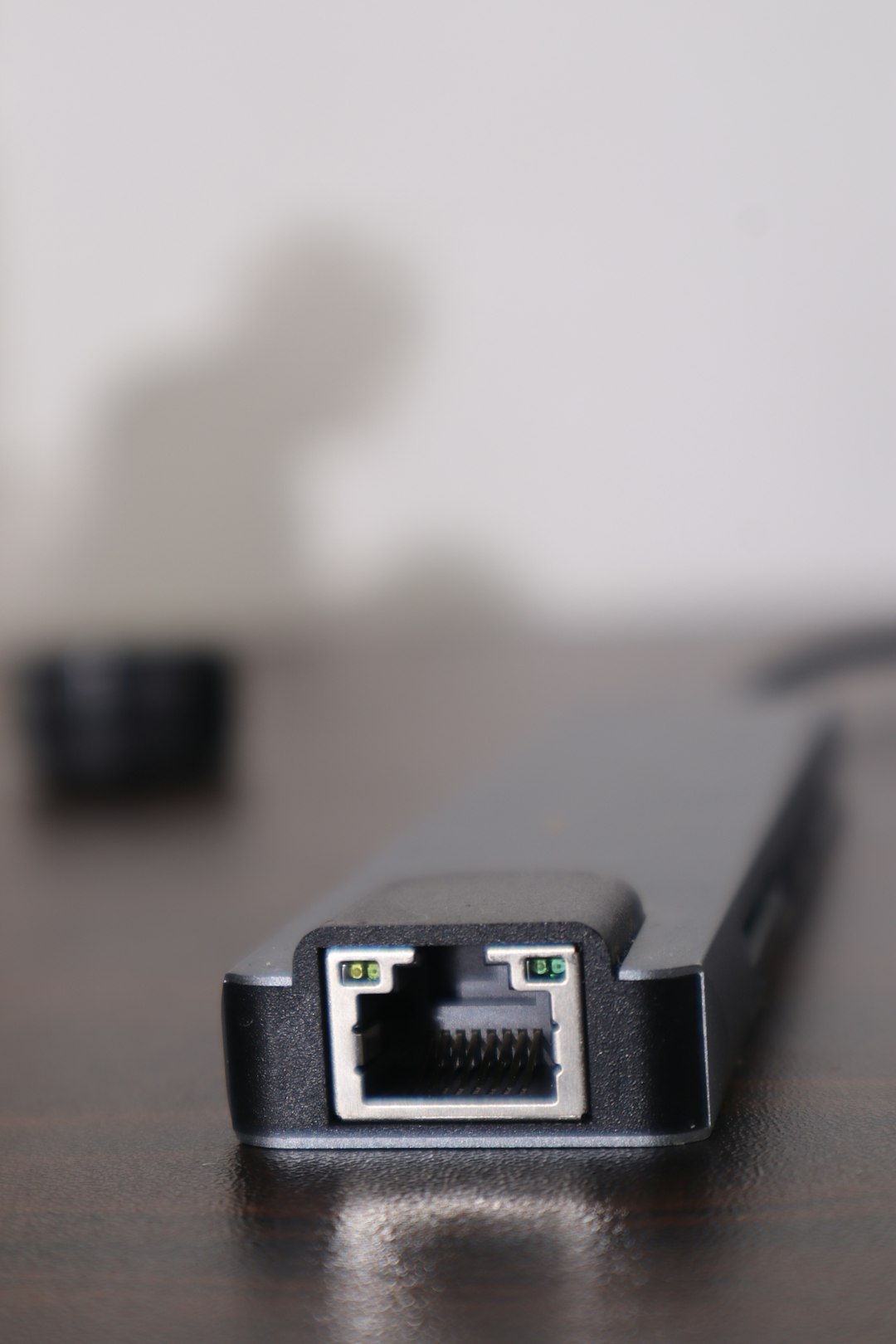
Step 2: Log In to Your Rogers Router
Let’s unlock the router door!
- Open any web browser (Chrome, Firefox, Safari — your pick).
- Type 192.168.0.1 or 10.0.0.1 into the address bar and hit Enter.
- Enter your router username and password. If you haven’t changed it, it’s usually:
- Username: admin
- Password: password
Note: If that doesn’t work, check the back of your router for the default login or call Rogers support.
Step 3: Improve the Router Settings
You can’t enter the Stalker Portal link here, but what you can do is optimize things so your device connects faster and smoother.
Here’s what to tweak:
- Enable Port Forwarding: This allows specific devices on your home network to receive important data faster.
- Adjust DNS Settings: Speed things up by switching your DNS to something like Google DNS (8.8.8.8 and 8.8.4.4).
- Assign Static IP: Give your IPTV device a permanent address on your network, so it doesn’t keep changing.
To change DNS settings:
- In the router menu, find the Basic or Advanced Settings.
- Locate the DNS setup box.
- Replace automatic DNS with:
- Primary: 8.8.8.8
- Secondary: 8.8.4.4
That tells your router to use Google’s fast DNS servers instead of the possibly slower Rogers ones.
Step 4: Add the Stalker Portal Link to Your Device
Now comes the fun part — adding the portal link to your IPTV box or app.
If you’re using a MAG box:
- Plug in and power your MAG box.
- On startup, press the Setup or Menu button on the remote.
- Go to System Settings » Servers » Portals.
- In “Portal 1 URL”, paste the Stalker Portal link you were given.
- Save and reboot the box.
Using an IPTV app like STBEmu on Android or Firestick?
No sweat. Here’s how:
- Open the app and go to Settings » Profiles » Add Profile.
- Name it something cool, like “SuperStream” or “Portal Fun.”
- Enter the Stalker Portal link under Portal Settings.
- Save, restart the app, and give it a minute or two to load.
Bonus: Improve Your Connection
Here’s how to get the smoothest streaming experience possible:
- Use Ethernet: If possible, plug your IPTV box directly into the router with a cable. This beats WiFi every time.
- Reduce Clutter: Disconnect devices that don’t need to be online while you’re watching TV.
- Upgrade Your Plan: If things are really slow, it might be time to bump up your internet speed.
Common Problems & Solutions
Oops! Something went wrong? Don’t panic. Here are common issues and what they usually mean:
- “Page loading error” — The portal link might be typed wrong. Double-check it and try again.
- Buffering — This could mean a slow connection. Switch to Ethernet or try restarting your router.
- “Authentication Failed” — Your IPTV provider might be having issues. Or your subscription has expired. Contact them to confirm.
Final Thoughts
While you can’t exactly slip a Stalker Portal directly into your Rogers router, you now know how to set everything up the right way to make it all run smoothly.
Think of the router as your helpful assistant — it doesn’t play the show, but it clears the path so your entertainment gets to you without hiccups.
Streaming IPTV doesn’t have to be complicated. With a little patience and the right settings, you’ll be flipping through channels like a pro in no time!
Go grab that remote and enjoy the show!