

No Man’s Sky (NMS) has come a long way since its initial release, boasting a thriving community, cross-platform multiplayer features, and stunning procedurally generated galaxies. However, like many online multiplayer titles, it’s not without connectivity issues. If you’ve ever encountered the dreaded “You have lost connection to online services” error, you know how frustrating it can be—especially when exploring with friends or uploading discoveries.
TL;DR
If you’re getting disconnected in No Man’s Sky, the issue is often tied to your internet connection or temporary issues with Hello Games’ servers. Fast fixes include restarting your router, checking server status, verifying firewall settings, and using a wired connection. If all else fails, refreshing your DNS or reinstalling the game can resolve persistent problems. Use the steps in this guide to get back into the galaxy swiftly.
Why No Man’s Sky Disconnects Happen
There can be multiple reasons behind connection drops in NMS. Understanding the probable cause helps in selecting the right fix. Some of the most common contributors include:
- Internet instability – Frequent Wi-Fi fluctuations or latency spikes.
- Server problems – Temporary outages or maintenance by Hello Games.
- NAT type restrictions – Strict NAT types can limit multiplayer connectivity.
- Firewall or antivirus interference – Security software sometimes blocks gameplay traffic.
- Outdated network drivers – Can prevent stable connections or degrade performance.
Depending on whether you’re on PC, Xbox, or PlayStation, solutions will vary slightly. Thankfully, most issues can be resolved with a few methodical steps.
Quick Fixes to Reconnect to NMS Multiplayer
1. Restart Your Game and Network Devices
This may sound obvious, but sometimes temporary glitches can be resolved by simply closing the game and restarting everything. Here’s what you can do:
- Exit to your desktop or console home screen, close the game completely.
- Unplug your modem and router. Wait 60 seconds before plugging them back in.
- Allow all lights to stabilize, then launch NMS again.
2. Check the Server Status
Before diving into more involved troubleshooting, make sure the issue isn’t on the developer’s end. Visit the official site or a trusted server status checker such as:
If servers are down, the best course of action is to wait until services resume.
3. Use Wired Connections Instead of Wi-Fi
Wi-Fi can introduce interference and latency spikes that disrupt your connection to No Man’s Sky servers. For better stability:
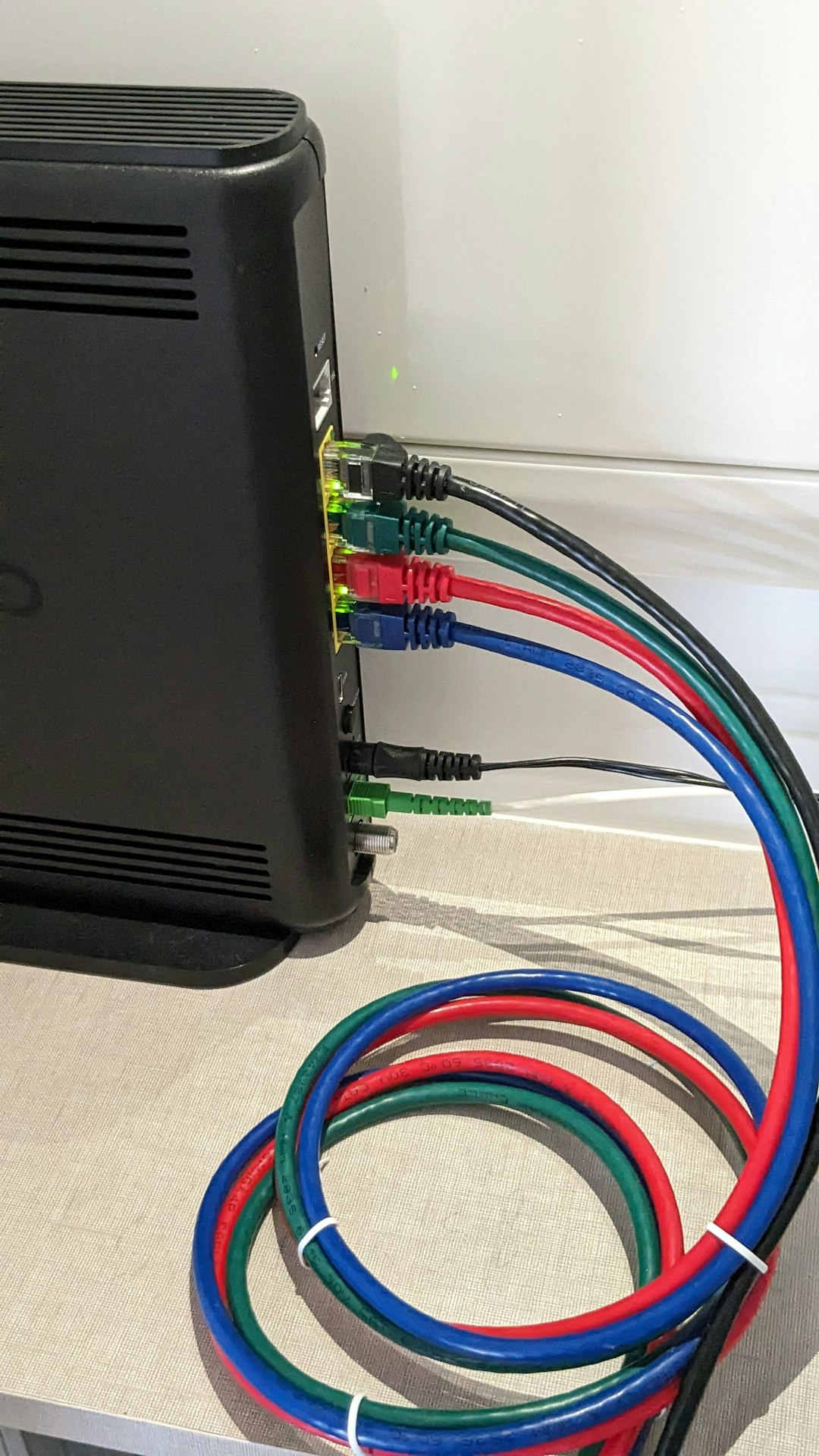
- Connect your console or PC directly to your router using an Ethernet cable.
- Disable Wi-Fi if both connections are active to avoid conflicts.
Wired connections are vastly superior for gaming, especially in games like NMS that rely on real-time synchronicity.
4. Check Your NAT Type
Your NAT (Network Address Translation) type controls how your device connects with others. If it’s too restrictive, multiplayer can suffer:
- Open NAT (Type 1): Best for gaming – no restrictions.
- Moderate NAT (Type 2): Acceptable but can block certain connections.
- Strict NAT (Type 3): This will frequently cause disconnection issues.
To improve your NAT type, consider the following solutions:
- Enable UPnP (Universal Plug and Play) in your router settings.
- Set a static IP for your console/PC and forward the required ports manually.
- Consult your ISP or router documentation for specific instructions.
5. Temporarily Disable Firewalls and Antivirus
Firewalls and antivirus software occasionally tag No Man’s Sky as a threat by mistake, especially after updates.
Steps for testing interference:
- Disable your firewall and antivirus temporarily.
- Launch No Man’s Sky and try to connect.
- If successful, add NMS to your whitelist or exceptions list.
Note: Always re-enable your security software after testing.
6. Verify Game Files (PC Users)
If you’re on Steam, corrupted game files may interfere with normal gameplay or connectivity.
To verify your installation on Steam:
- Right-click on No Man’s Sky in your Steam library.
- Select Properties > Installed Files > Verify Integrity of Game Files.
- Wait for the process to finish and restart the game.
7. Change DNS Settings
Alternative DNS servers can provide better routing paths when connecting to game servers. Try using Google’s public DNS:
- Primary: 8.8.8.8
- Secondary: 8.8.4.4
To do this:
- Go to your network settings on your console or PC.
- Manually enter these DNS addresses.
- Restart the device and relaunch NMS.
When All Else Fails
Reinstalling the Game
Uninstalling and reinstalling No Man’s Sky should be a last resort, but it can resolve deep-rooted issues such as:
- Corrupted multiplayer config files.
- Old cached data that conflicts with updates.
- Improper installation or patching errors.
Tip: Back up your save files, particularly on PC, before uninstalling.
Contact Hello Games Support
If none of the above methods work, it could be a rare account or server-specific error. In that case:
- Visit Hello Games Support
- Submit a detailed ticket including your platform, NAT type, and the error code (if any).
The team is known for being responsive and committed to delivering player support, especially after major updates.
Final Tips to Prevent Future Connection Loss
To reduce the chances of getting disconnected in the future, you might consider the following habits:
- Always keep your network drivers and game updated.
- Use Quality of Service (QoS) settings on your router to prioritize gaming traffic.
- Limit bandwidth-heavy activities like downloads and streaming during gameplay.
- Schedule regular reboots of your modem and router to maintain performance.
Playing No Man’s Sky with a stable connection enhances not only exploration but also cooperation with other players. By taking a few easy steps, you’ll spend less time troubleshooting and more time discovering the galaxy.